What a Flowchart Is and Who Uses One
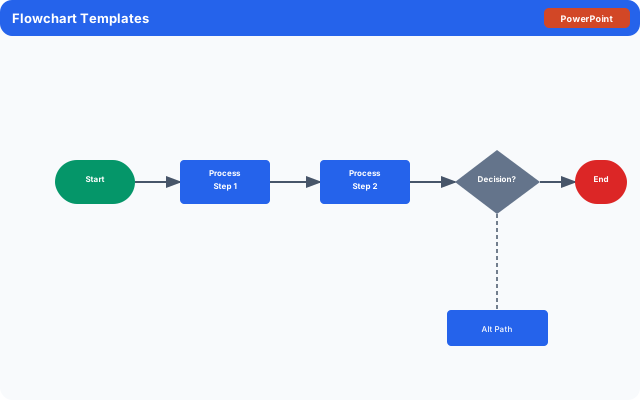
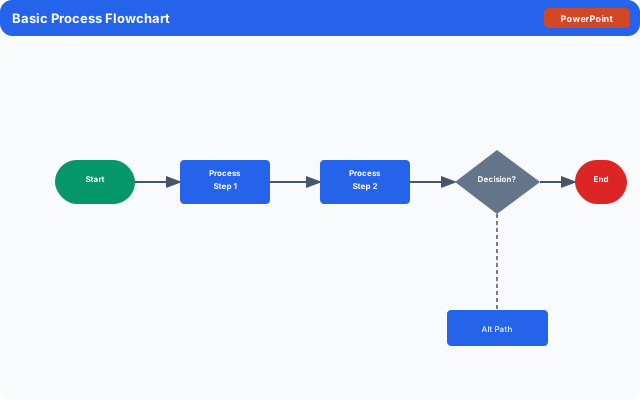
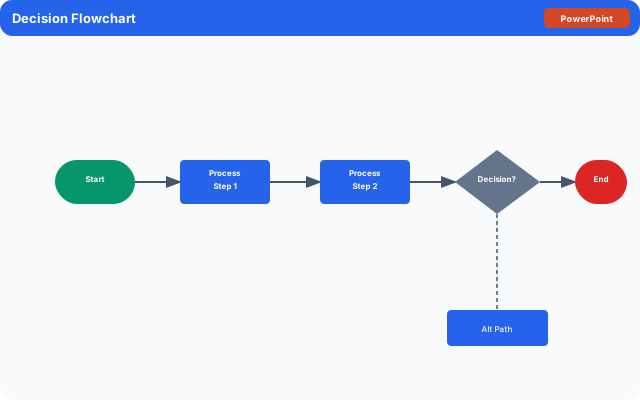
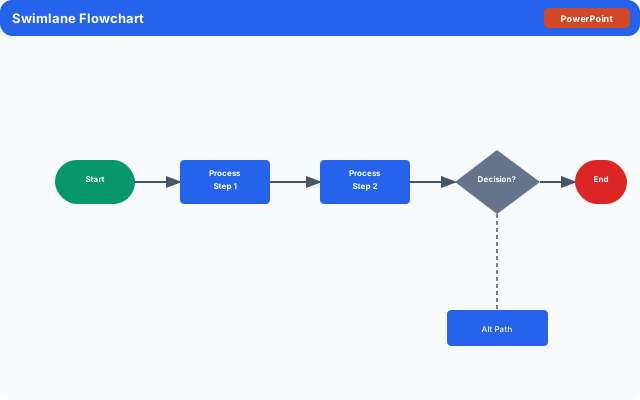
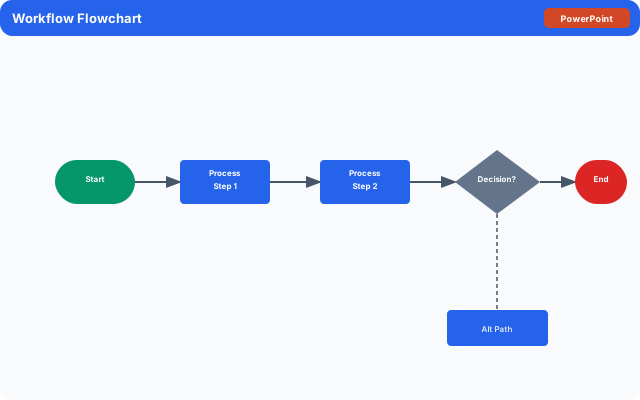
A flowchart is a diagram that maps the steps of a process using standardized shapes and arrows to show how work flows from start to finish. Rectangles represent actions or tasks. Diamonds represent decision points where the flow splits based on a yes-or-no condition. Ovals mark the start and end. Arrows show the direction of flow. The result is a visual picture of how something works that is faster to understand than a written description.
Process flowcharts are used in virtually every industry. Operations teams document standard operating procedures so new employees can follow them without asking questions. Software developers draw flowcharts to design system logic before writing code. HR teams map onboarding workflows to identify bottlenecks. Healthcare organizations use process maps to standardize patient care protocols. Customer service teams build decision trees to guide representatives through troubleshooting calls. Organizational chart templates are a specific type of flowchart that shows reporting relationships and team structure rather than a sequential process.
- Operations and process improvement teams mapping standard workflows
- Software developers designing system logic and algorithms before coding
- HR departments documenting onboarding and offboarding processes
- Customer service teams building decision trees for troubleshooting scripts
- Healthcare organizations standardizing clinical procedures and care protocols
- Business analysts documenting as-is and to-be process states for improvements
- HR and leadership teams creating org charts to show team structure and reporting lines
What to Include in a Flowchart Template
A complete flowchart template includes the standard shapes, clear labels, directional arrows, and a legend or shape key so anyone reading it understands what each element means. For process maps and decision trees, every branch of a decision point must lead somewhere; a diamond with only one exit arrow is an incomplete diagram.
For org chart templates, the key elements are boxes for each role or person, lines showing reporting relationships, and labels that include the person's name, title, and department. A work breakdown structure (WBS) template looks similar to an org chart but maps project deliverables into hierarchical levels rather than people.
- A defined start and end point for every process path
- Action steps in rectangles with a clear, active-voice label
- Decision points in diamonds with a yes-or-no question and labeled exit paths
- Directional arrows on every connection showing which way the process flows
- A shape key or legend explaining what each shape represents
- A title, version number, and date so readers know which version they are looking at
- Swimlanes if multiple departments or roles are involved in the process
- For org charts: name, title, and department in each box with hierarchy levels clearly visible
- For decision trees: all possible outcomes labeled at the end of each branch
How to Create and Use a Flowchart Template
You can draw a flowchart in Google Drawings (accessible from Google Drive), Google Slides, Microsoft PowerPoint, or Word using the Insert Shapes menu. For text-based process maps where a visual diagram is too complex to share easily, a structured text outline using the shape descriptions above captures the same logic in a format that works in any document. The steps below apply to creating a flowchart in any tool.
- Define the scope before drawing anything. Decide where the process starts, where it ends, and whose work is included. A process that tries to cover everything becomes too complex to be useful.
- List every step in the process in plain text first, in order. Do not worry about the diagram yet. Getting the steps right in sequence is the hard part.
- Identify every decision point in your list. These are places where the process splits depending on a condition, answer, or result. Each decision needs a yes path and a no path.
- Draw the start oval and add the first action rectangle connected by an arrow. Continue down through each step in order.
- When you reach a decision point, draw a diamond and label it with a yes-or-no question. Draw two arrows out of the diamond and label one 'Yes' and the other 'No'. Follow each path until it either reaches the end or rejoins the main flow.
- Add swimlanes if the process crosses department or role boundaries. Put each participant's steps in their own lane so responsibility is clear.
- Review the completed flowchart by walking through it with someone unfamiliar with the process. If they can follow it without asking questions, it is clear enough to use.
Flowchart Types and Related Templates
The generic process flowchart is the most versatile, but several specialized formats exist for specific use cases. Each one uses the same basic shape language but applies it differently depending on whether you are mapping a process, a hierarchy, or a decision logic.
A decision tree template maps all possible choices and their consequences in a branching structure, without the start-to-end sequential flow of a process chart. It is useful for pricing decisions, diagnostic troubleshooting, and eligibility screening. An org chart template (also called an organizational chart or organization chart) shows the hierarchy of roles in a company or team, with lines representing reporting relationships rather than flow. A process map template is essentially another name for a flowchart, though process maps often include swimlanes and more operational detail. A value stream mapping template is a specialized lean manufacturing tool that maps the flow of materials and information through a production process alongside time and waste metrics.
- Process flowchart: sequential steps from start to end with decision points, the most common type
- Decision tree template: branching diagram of choices and outcomes, best for logic-heavy decisions
- Org chart template: hierarchy of roles or people with reporting lines, no sequential flow
- Organizational chart Word template: the same org chart format built in Microsoft Word
- Process map template: a flowchart with swimlanes showing who does what in a multi-team process
- Work breakdown structure (WBS) template: hierarchical decomposition of project deliverables, similar structure to an org chart
- Value stream mapping template: lean process map with time and waste data added to each step
- Network diagram template: shows relationships and dependencies between nodes, used in IT and project scheduling
- Relationship chart template: maps connections between entities without implying hierarchy or sequence
Common Mistakes and Tips for Better Flowcharts
The most common flowchart mistake is making it too detailed. A flowchart that maps every micro-step in a process becomes a wall of shapes that nobody reads. The right level of detail is the level where a new team member can understand what happens and in what order without needing a 30-minute explanation alongside the diagram.
A second common problem is inconsistent shape usage. Using rectangles for some decision points and diamonds for others breaks the visual language and forces readers to re-interpret the diagram. Stick to the standard shape conventions: rectangle for action, diamond for decision, oval for start and end.
- Keep the level of detail consistent throughout the chart, either high-level steps or detailed sub-steps, not a mix
- Always label decision diamond arrows with yes/no or the condition they represent
- Avoid lines that cross each other; reroute arrows or add connector dots to keep the diagram readable
- Use swimlanes any time more than one person or team has a role in the process
- Add a version number and date so teams know they are working from the current version
- For org charts, keep the hierarchy to three or four visible levels on a single page; link to subcharts for large organizations
The template