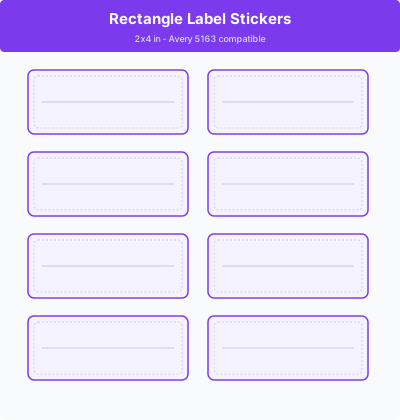
What Is a Sticker Template and Who Uses It
A sticker template is a pre-shaped, pre-sized document or design canvas that matches a common sticker format, such as a 2-inch circle, a 3 x 3 inch square, or a custom die-cut shape. You design inside the template boundaries, print on sticker paper, and cut or peel out the finished sticker.
Sticker templates cover a wide range of uses. Small business owners print product labels, packaging stickers, and promotional giveaways. Teachers create classroom reward stickers and motivational labels. Event planners design custom stickers for weddings, parties, and fundraisers. Crafters sell sticker sheets on Etsy and at markets. Kids and teens design stickers for decoration, journaling, and personalization.
Button templates and pin templates follow the same logic but are sized for pinback button machines (the most common standard is 2.25 inches, sometimes written as 2.25" button template). Stamp templates are simplified designs meant to be carved into rubber or ordered from a stamp maker, with a bold, graphic style that reads clearly even when printed small.
- Small business owners designing product labels, promotional stickers, and packaging seals
- Teachers creating classroom reward stickers, grading stamps, and motivational labels
- Crafters making sticker sheets to sell or trade at markets and on Etsy
- Event planners designing custom stickers for wedding favors, party decor, and fundraiser giveaways
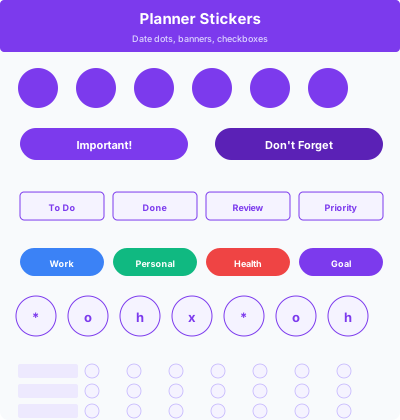
- Hobbyists and students making decorative stickers for journals, laptops, water bottles, and planners
What to Include on a Sticker Design
Stickers are small, so every element needs to work at a reduced size. Here is what belongs on a well-designed sticker and what to leave out.
- A clear focal point: One dominant visual element, either an illustration, icon, or bold text. Stickers that try to include too many elements become illegible at sticker size
- Minimal text: One to three short words work best. Long sentences or small print are unreadable on most sticker sizes
- A border or background: A solid color fill, gradient, or pattern behind the design helps the sticker read as a complete, finished object rather than a floating element on the paper
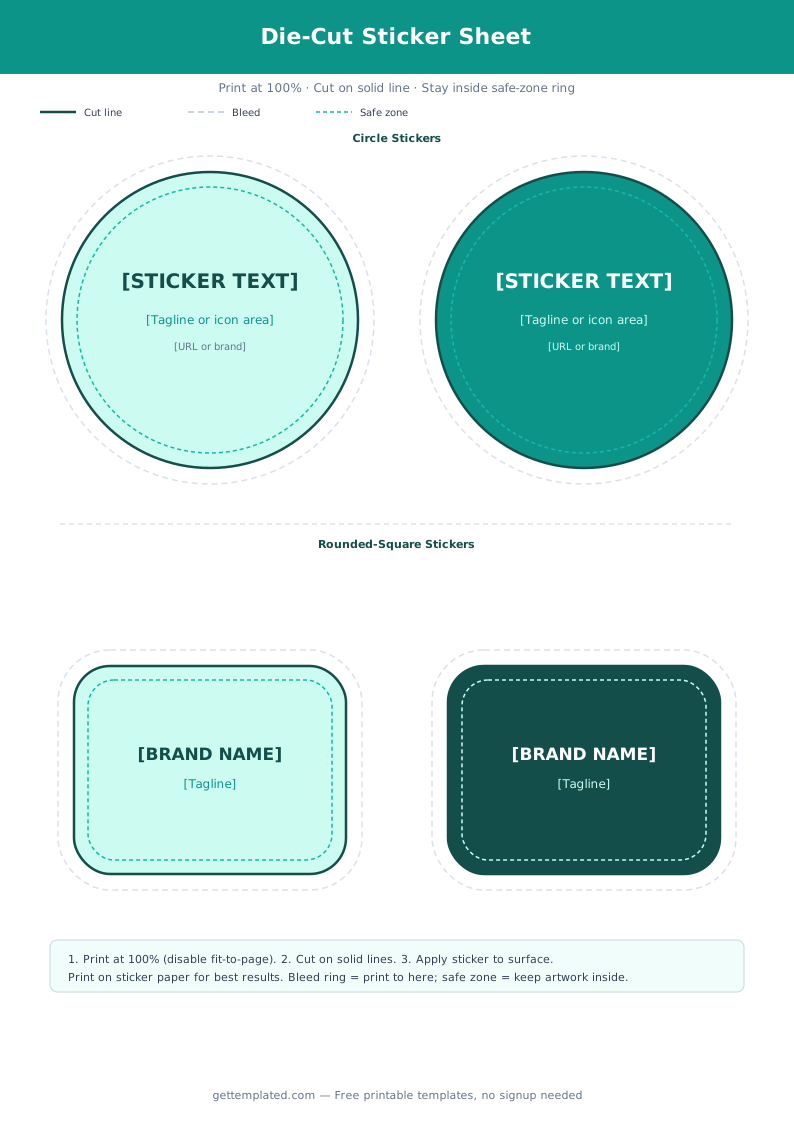
- Bleed area: A 0.125 inch extension of the background color beyond the cut line so trimming does not leave a white edge around the sticker
- Safe zone: Keep all critical design elements at least 0.125 inches inside the cut line so they are not accidentally trimmed off
- For button templates: Keep all content within 0.15 inches of the inner button edge since the button machine folds the outer ring over the back
How to Make and Print a Sticker Template
You can make a printable sticker template in Canva, Google Docs, or any design tool that supports custom shapes and exact canvas sizes. Here is the process from design to finished sticker sheet.
- Choose your sticker shape and size. Circle stickers at 1 to 3 inches are the most versatile. Standard sizes for button machines are 1-inch, 1.5-inch, 1.75-inch, 2.25-inch, and 3-inch diameter.
- In Canva, search for 'circle sticker' or 'sticker sheet' to find templates at common sizes. To build your own, create a custom canvas in inches matching your sticker size.
- Design within the safe zone. For a 2-inch circle sticker, all critical content should stay within a 1.75-inch inner circle. The outer 0.125 inches is bleed.
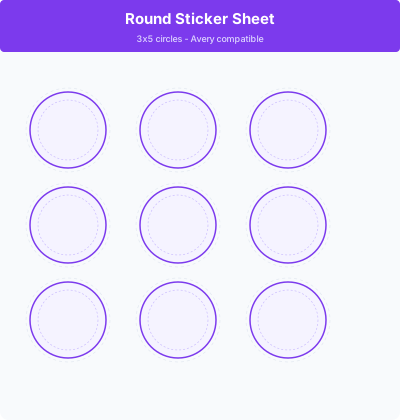
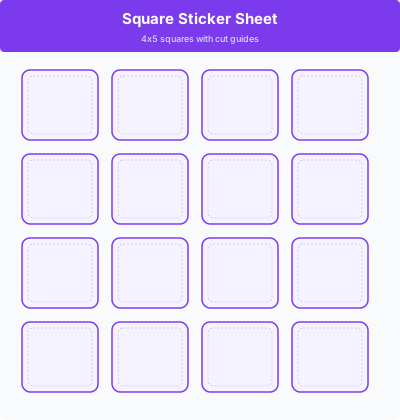
- For a sticker sheet with multiple stickers, create a letter-size canvas (8.5 x 11 inches) and place a grid of sticker circles on it. For 2-inch circles, a 4x5 grid fits 20 stickers per sheet.
- Export at a minimum of 300 dpi as a PDF or PNG. Lower resolution prints look blurry and pixelated on glossy sticker paper.
- Print on full-sheet adhesive paper (matte or glossy, available at most office supply stores). For best color, use an inkjet printer with inkjet-compatible sticker paper.
- Cut stickers using a circle punch, craft cutter (such as a Cricut or Silhouette), or scissors. For home printing without a cutter, round corner punch scissors give a cleaner result than straight cuts.
Button and Pin Templates: What to Know
Button templates, also called pin templates, are sticker-style designs sized specifically for pinback button machines. The most common size is the 2.25-inch button, though 1-inch, 1.5-inch, and 3-inch options are also widely used.
The 2.25-inch button template format has a total design circle of 2.25 inches across. When the button machine presses the design, it folds approximately 0.15 inches of the outer edge over the back shell. This means your design's live area (the part that stays visible on the front of the button) is about 1.95 to 2 inches across. Keep all text and important design elements inside this inner circle.
To design a button template, create a 2.25-inch circle canvas in Canva or Illustrator. Add your design within the safe inner area. Export as a PNG or PDF and print on regular copy paper (not sticker paper; the button machine provides the adhesive backing). Cut out each circle before loading it into the button press.
A button maker template for a badge press works the same way but sometimes uses a rectangular or oval shape instead of a circle, depending on the badge hardware.
Sticker Design Tips and Common Mistakes
Small format, big impact. These tips help sticker designs work well in print and avoid the most common mistakes.
- Design at actual size, not scaled. If your sticker is 2 inches, design at 2 inches at 300 dpi. Scaling a design down from a larger canvas often reveals detail that disappears at sticker size
- Test at actual size before printing a full sheet. Print one sticker on plain paper, cut it out, and look at it. Details that look fine on screen often disappear at 2 inches
- Use vector-style or bold graphics rather than detailed photography. Small prints of complex photos look muddy. Bold illustration, flat icons, and large text hold up best
- Glossy sticker paper makes colors richer and more vibrant than matte. For product labels, glossy is the standard choice. Matte works better for labels that will be written on
- Leave adequate bleed. The single most common home sticker printing mistake is forgetting to extend the background color beyond the cut line, resulting in a visible white border around every sticker
- For stamps, use only two tones: your ink color and the negative (unprinted) space. Fine lines and gradients do not transfer well in rubber stamp printing
The template