What a Polaroid Template Is and What It Is Used For
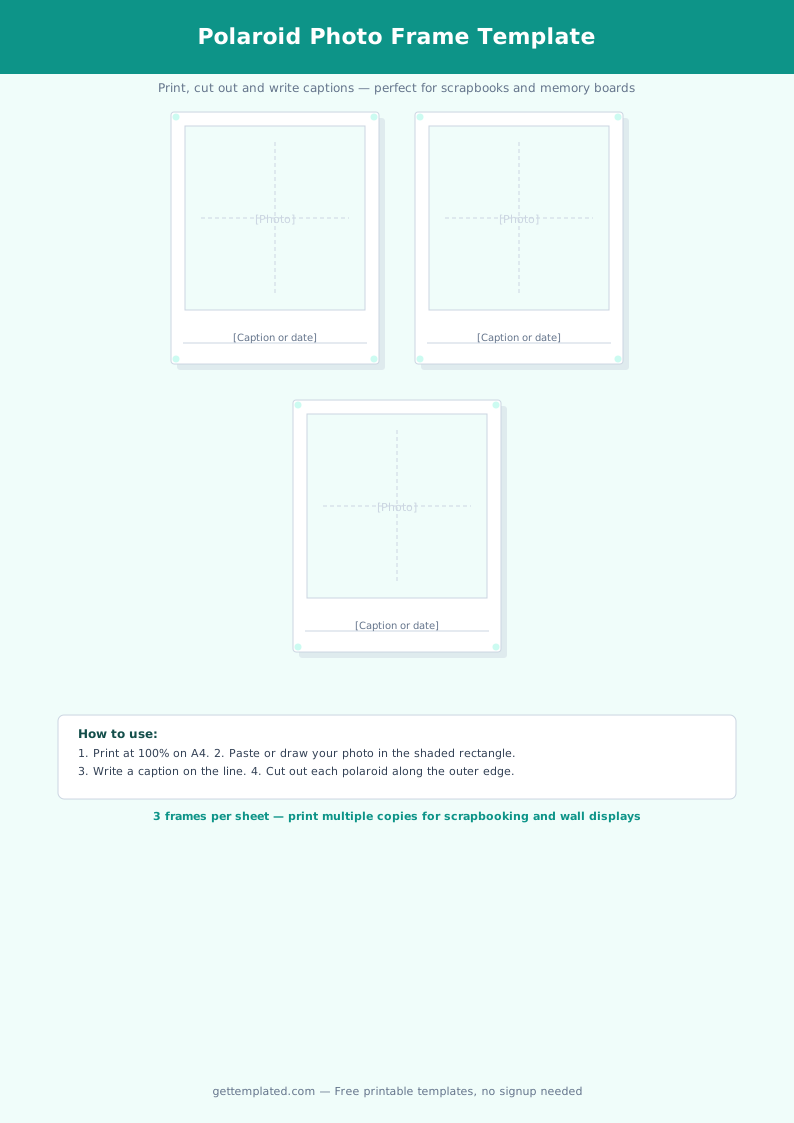
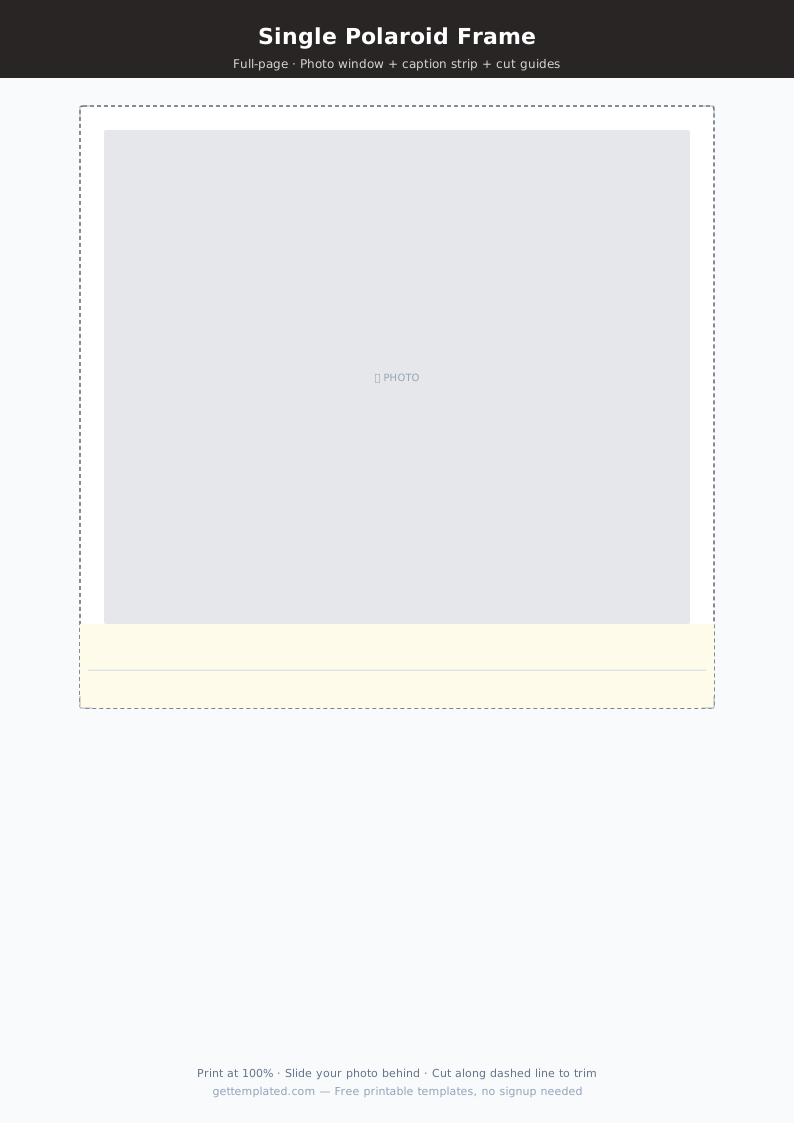
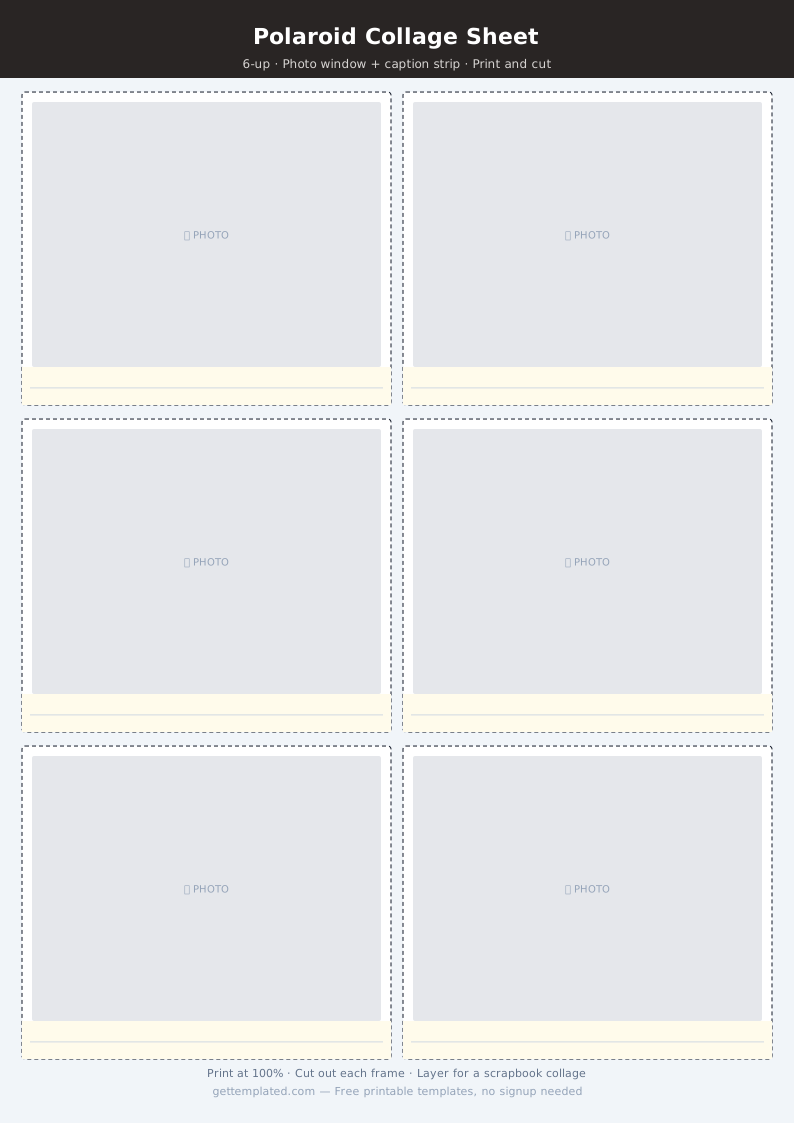
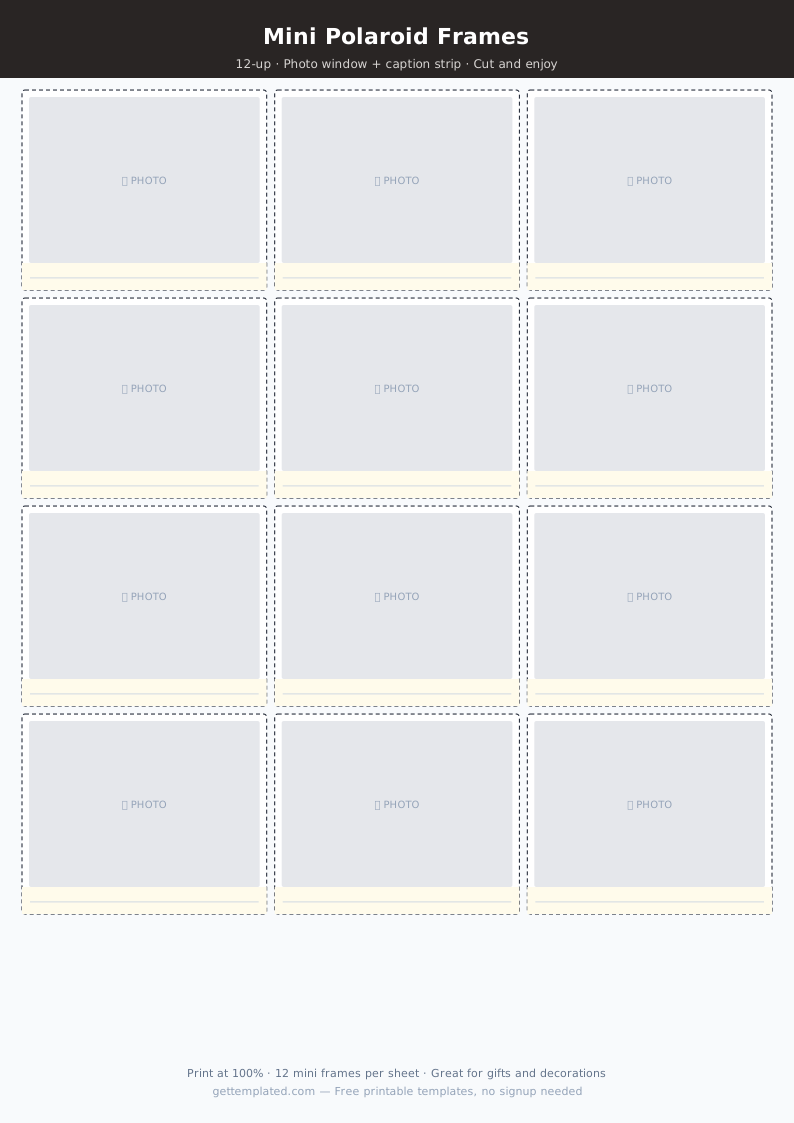
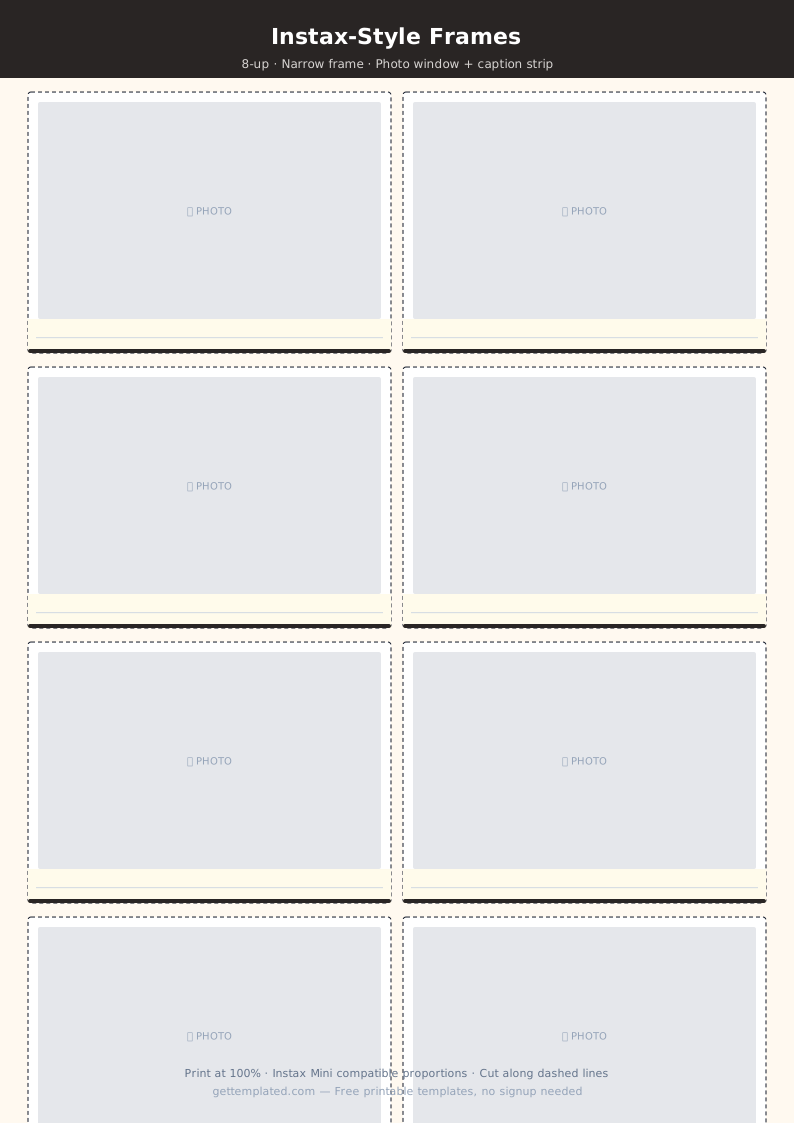
A polaroid template is a pre-sized frame design that replicates the visual style of a Polaroid instant photograph: uniform white borders with a noticeably thicker strip at the bottom for a caption. The template gives you the proportions and layout so you can drop in any photo and produce a consistent, recognizable aesthetic.
Polaroid templates are used for a wide range of personal and creative projects. They are popular in scrapbooking, photo wall displays, classroom memory boards, graduation and baby shower decorations, party photo booth props, social media content, and printed gifts like photo books or ornaments. The template works in Google Docs, Word, Canva, or any graphic design tool as long as you have the right dimensions.
- Scrapbooking: print polaroid-style pages for physical memory albums
- Photo walls and gallery boards: create cohesive displays where all photos look uniformly framed
- Classroom and school projects: memory boards, yearbook pages, reading logs with student photos
- Party decorations: photobooth props, party favor labels, table centerpiece photo displays
- Social media posts: Instagram stories and posts in a polaroid aesthetic
- Gifts: printed photo coasters, fridge magnets, or ornaments in the polaroid format
- Wedding and event decor: guest photo memory tables, escort card displays, slideshow overlays
Polaroid Template Dimensions and Standard Sizes
Getting the proportions right is what makes the template look like a genuine Polaroid rather than just a photo in a white box. The key is the bottom border: it should be roughly three times the width of the side borders. An original Polaroid 600-format photo measures 3.5 inches wide by 4.2 inches tall, with a 3-inch square image area and a roughly 0.7-inch caption strip at the bottom.
For digital use, work in pixels rather than inches. A good starting size for social media is 1080 x 1296 pixels (matching the 3.5:4.2 ratio at screen resolution). For print, working at 300 dpi gives sharp results: 1050 x 1260 pixels produces a 3.5 x 4.2 inch print at 300 dpi.
- Standard print size: 3.5" wide x 4.2" tall
- Image area: 3.0" x 3.0" (square)
- Top and side borders: approximately 0.25 inch each
- Bottom caption border: approximately 0.7 inch
- Digital (social media): 1080 x 1296 px at 72 dpi
- Digital (print): 1050 x 1260 px at 300 dpi for a sharp 3.5 x 4.2 inch print
- Sheet layout for printing 4 per page: 2x2 grid on US Letter with 0.5" margins and 0.25" gaps
How to Create a Polaroid Frame in Google Docs or Word
You do not need design software to make a polaroid frame. Google Docs and Word both support table-based layouts that can approximate the look. Here is how to do it in either app:
- Open a new document in Google Docs or Word. Set page margins to 0.5 inch on all sides and choose portrait orientation.
- Insert a table with 1 row and 1 column (Insert > Table > 1x1). Set the table width to 3.5 inches and height to 4.2 inches.
- Set the table border color to white and background color to white. This creates the polaroid frame appearance.
- Inside the table cell, insert your photo. Right-click the image and set it to exactly 3 inches wide. It will crop or fit to a square shape.
- Below the photo, click after the image and press Enter once. Type your caption in a handwritten-style font (Google Fonts offers Caveat, Patrick Hand, and Indie Flower as free options). Keep the font small (10 to 12pt) and lowercase for the classic look.
- To print multiple polaroids per page, duplicate the table and arrange two columns side by side. Four polaroids fit on one US Letter page with standard margins.
- Before printing, set the page background to a cream or light gray color to make the white polaroid frames visible against the page.
Polaroid Template Variations and Creative Uses
The basic polaroid template can be adapted in many directions depending on the project. Changing the frame color, caption style, or overall size opens up a range of looks while keeping the recognizable polaroid shape.
- Classic white frame: the standard look, works for everything
- Black or dark frame: a moody, editorial variation popular for social media
- Pastel frame: popular for baby showers, nursery decor, and graduation displays
- Colored caption strip: keep the frame white but fill the bottom caption area with a color that matches your event palette
- Blank caption strip: leave it empty for guests to write their own handwritten messages at a party or event
- Vintage filter: add a sepia, faded, or grainy overlay to the photo inside the frame for a nostalgic look
- Digital sticker: create a transparent-background polaroid frame PNG and layer it over photos in Instagram Stories or design tools
Tips for Printing Polaroid Templates
Printing polaroid templates at home is straightforward, but a few choices affect the final quality significantly. Paper type matters more for polaroid prints than for most other printed documents because the thick white border is front and center.
- Use matte photo paper or thick cardstock (80 lb or heavier) rather than regular copy paper. The white borders look sharper and more substantial on heavier stock.
- Set your printer to its highest quality setting and turn off automatic color correction so the white borders print cleanly.
- Leave a small bleed area (0.125 inch) around the outer edge of the frame if you plan to cut the polaroids out by hand, so minor cutting variation does not clip the white border.
- A trimmer or paper cutter produces cleaner cuts than scissors for straight-edged polaroid frames.
- For outdoor or high-traffic displays, laminate the printed polaroids or print on water-resistant photo paper.
- Test-print one polaroid at actual size before running a full sheet to verify dimensions and color.
The template