What a Name Tag Template Is and When to Use One
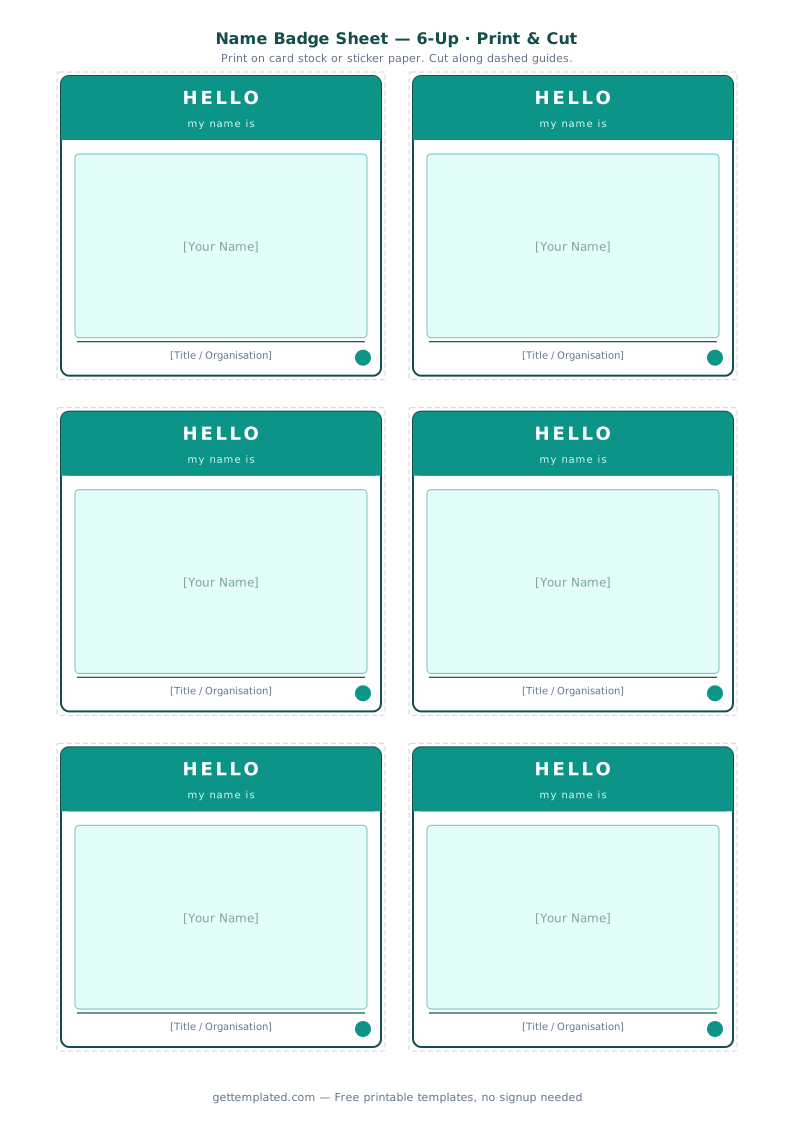
A name tag template is a pre-formatted layout for creating multiple name badges consistently and quickly. Rather than designing each badge individually or using a word processor's basic text box tool, a template gives you exact dimensions, aligned fields, and a reusable structure that works for every name you need to print.
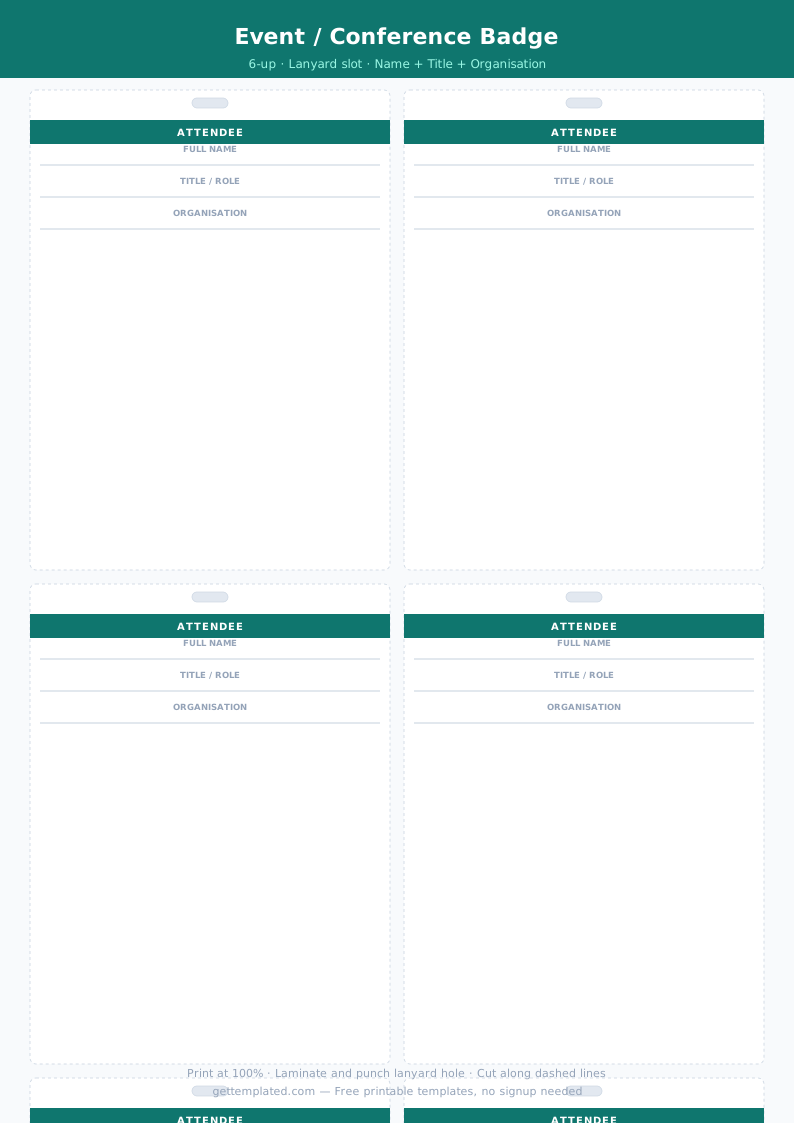
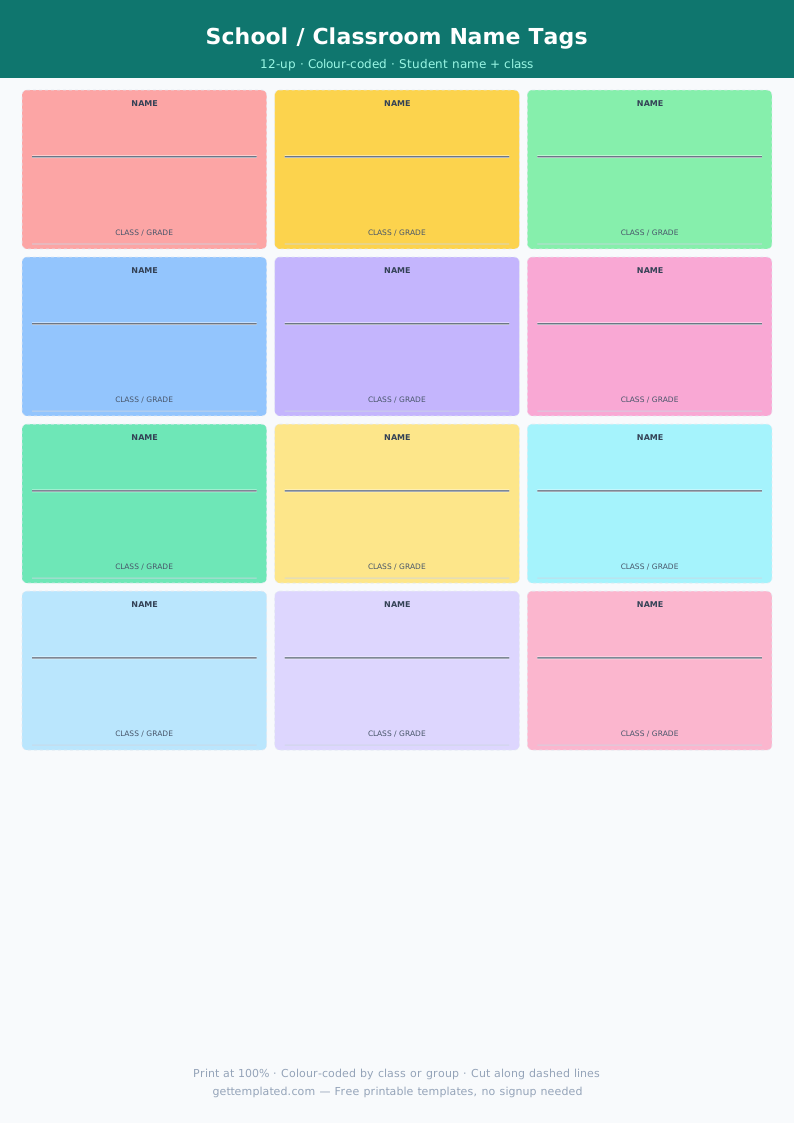
Name tags are used at conferences and professional events where attendees do not know each other, at school and classroom settings for student introductions, at parties and social events, and at trade shows where staff need visible identification. A well-designed name tag template speeds up event preparation and ensures every badge looks consistent when you print a full sheet.
- Conferences and professional networking events
- School classrooms and student orientation
- Corporate team building or new employee orientations
- Wedding receptions with assigned seating or staff badges
- Trade shows and exhibitions for staff and exhibitor identification
- Community events, church gatherings, and volunteer days
- Children's birthday parties with themed badges
What to Include on a Name Tag
The most effective name tags show the most important information at the largest possible size. Name is the primary purpose of a name tag, so the person's name, especially their first name, should dominate the badge. Everything else is secondary.
Beyond the name, what you include depends on the event context. At a professional conference, a job title and company name help attendees place each other quickly. At a school event, a grade level or classroom number is more relevant. At a party, a fun detail or conversation starter can replace formal titles entirely. Pronouns are increasingly included as a standard field at professional events and educational settings.
- First name (large, easy to read from a few feet away)
- Last name (optional, smaller if the event is informal)
- Job title or role
- Company, school, or organization name
- Event name or logo
- Pronouns (they/them, she/her, he/him) for inclusive events
- QR code linking to a portfolio, LinkedIn profile, or event resource (optional)
- Badge number for check-in tracking at large events
How to Make a Name Tag Template in Google Docs or Word
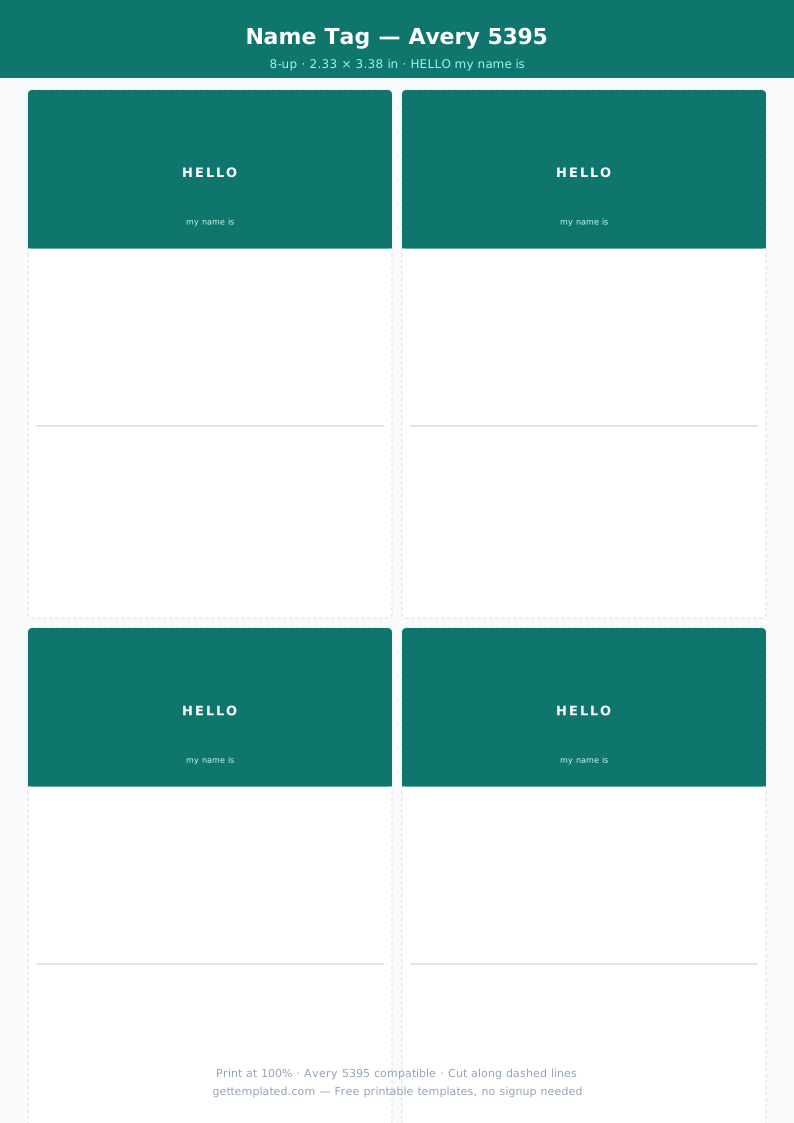
Google Docs is a practical free tool for creating printable name tag templates, especially for small batches. Use a table to create a grid of badges: insert a table with 2 columns and 4 rows to get 8 badge slots on one letter page, which matches the standard Avery name tag sheet layout.
Set each table cell to 4 inches wide by 2.33 inches tall (the dimensions of an Avery 5395 label). Turn off table borders if you are printing on pre-cut Avery sheets, or leave a light border if you are printing on plain paper and cutting yourself. Type each person's name, title, and organization in the appropriate cell.
For a Word name tag template, use the same table approach or use the built-in label template tool: go to Mailings, then Labels, and select the Avery product number that matches your name tag sheets. This automatically sets up the correct page layout and cell sizes.
- Open Google Docs or Word and create a new document
- Set page margins to the minimum (0.25 to 0.5 inches) to maximize badge area
- Insert a 2-column by 4-row table to create 8 badge slots per page
- Set each cell to the correct dimensions for your name tag sheet (4" x 2.33" for Avery 5395)
- Design the first cell with your layout: event name, name line, title, and organization
- Copy the first cell design into all other cells
- Fill in each cell with the correct person's information
- Turn off table borders if using pre-perforated name tag sheets, or print with light borders and cut by hand
Avery Name Tag Template: Sizes and Compatible Products
Avery is the most widely used brand for pre-perforated name tag sheets, and their product numbers have become a de facto standard for name tag dimensions. The most common Avery name tag templates correspond to a few key product numbers that are widely available at office supply stores.
Avery 5395 is the standard 8-per-page name badge with a 4 x 2.33 inch badge size, suitable for most professional events. Avery 5392 gives you larger 3.375 x 2.33 inch badges with 8 per page, which is a slightly squarer format. Avery 74459 is a larger conference badge at 4 x 3 inches. When creating your Google Docs or Word name tag template, match your cell dimensions to the specific Avery product you are printing on to ensure the content aligns correctly with the perforations.
- Avery 5395: 8 per page, 4" x 2.33" (most common size)
- Avery 74459: 8 per page, 4" x 3" (larger conference badge)
- Avery 5392: 8 per page, 3.375" x 2.33" (slightly wider format)
- Avery 8395: same as 5395 but laser-compatible
- Non-Avery generic name tag sheets: measure the badge size and use those dimensions in your template
Name Tag Design Tips for Readability and Professionalism
The number one priority for a name tag is readability from a conversational distance, roughly 2 to 4 feet. The first name should be printed at the largest font size that fits in the badge, typically 36 to 48 points for a standard-size badge. Last names, titles, and organization names can be smaller, around 14 to 18 points.
High contrast between text and background color is critical. Black text on a white background is the most readable combination. Avoid light gray text, decorative fonts that sacrifice legibility, or background images that compete with the text. If you want to color-code badges by role or department, use a solid background color with white or black text.
- Print first name at 36-48pt for easy reading from a few feet away
- Use high-contrast text and background (black on white is most readable)
- Avoid decorative fonts for the name itself; use them only for the event header if at all
- Leave generous padding inside each badge so text does not crowd the edges
- Color-code by role or department using background fill color for easy visual sorting
- Include the organization's logo as a small element in one corner for branded events
The template