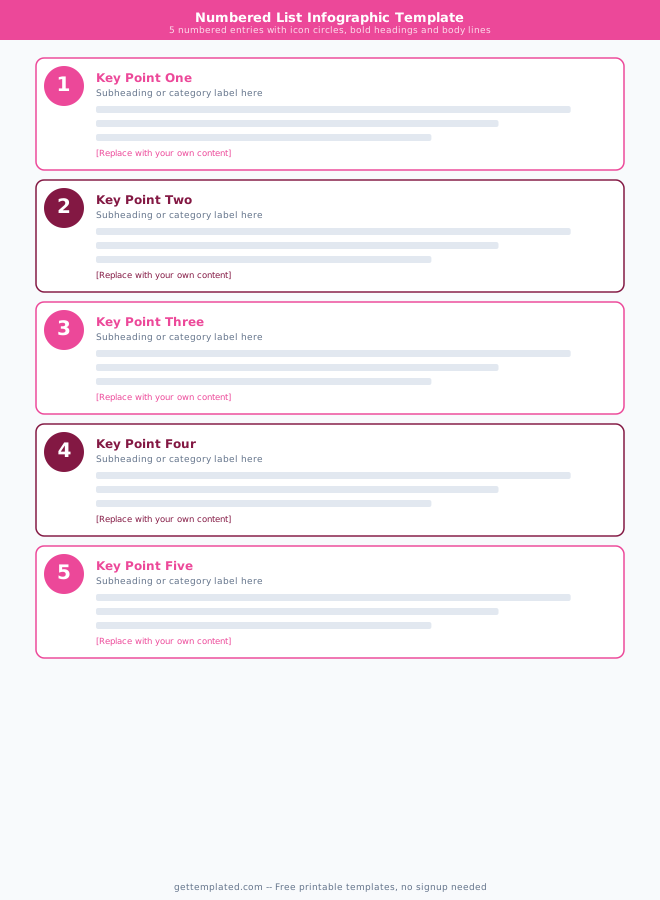
What Is an Infographic Template and Who Needs One
An infographic template is a pre-structured visual layout that organizes your content into graphic sections: headline, data points, icons, charts, and source citations. The template handles the spatial structure so you focus on the information rather than figuring out how to lay out a complex visual from scratch.
Infographics are effective because the human brain processes images and structured visual data far faster than continuous text. A well-designed infographic can communicate in 15 seconds what would take three paragraphs to explain in an article. The template ensures the layout follows a logical reading order and that the visual hierarchy is clear, even if you have no design background.
- Marketers creating shareable content for social media, blog posts, and email campaigns
- Teachers and educators building engaging classroom materials, lesson summaries, and study aids
- Business analysts presenting data to non-technical stakeholders who will not read a full report
- HR and internal communications teams sharing policy updates, onboarding guides, and process overviews
- Researchers and academics creating visual abstracts or data summaries for papers and conferences
- Nonprofit organizations explaining impact data, program outcomes, and call-to-action content for donors
Types of Infographic Templates
Not every infographic serves the same purpose. Choosing the right infographic type before you start the template saves significant rework time.
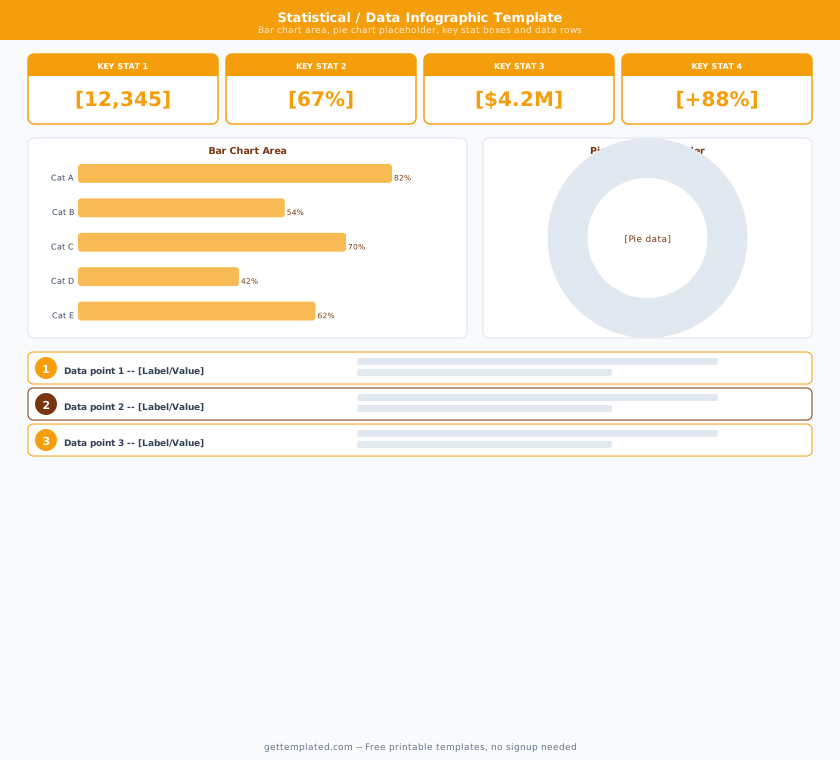
- Statistical infographic: Uses charts, large numbers, and icons to present data points. Best for research summaries, industry reports, and "did you know" content
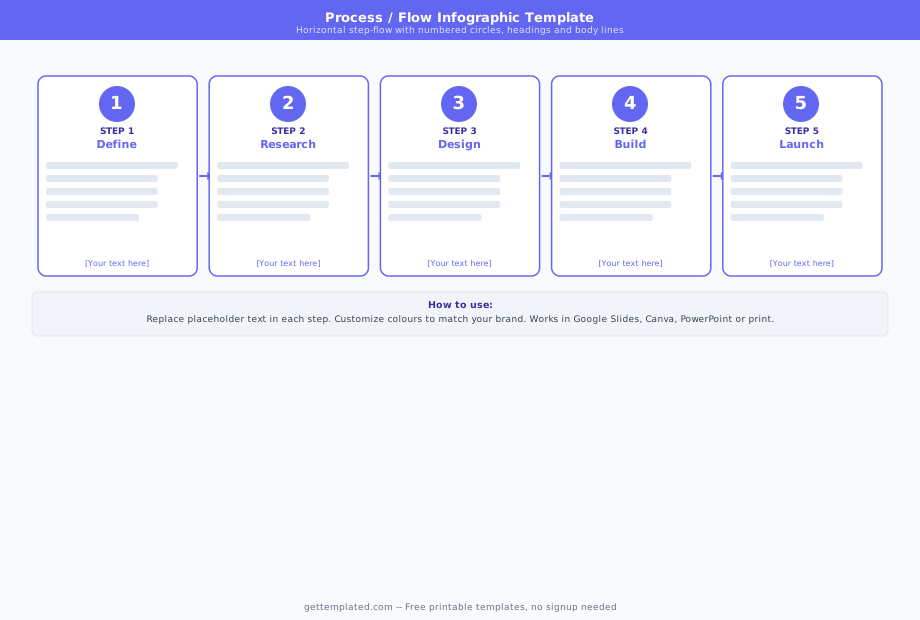
- Process infographic (how-it-works): Shows a series of steps in sequence using numbered sections or connected arrows. Best for explaining workflows, recipes, or procedures
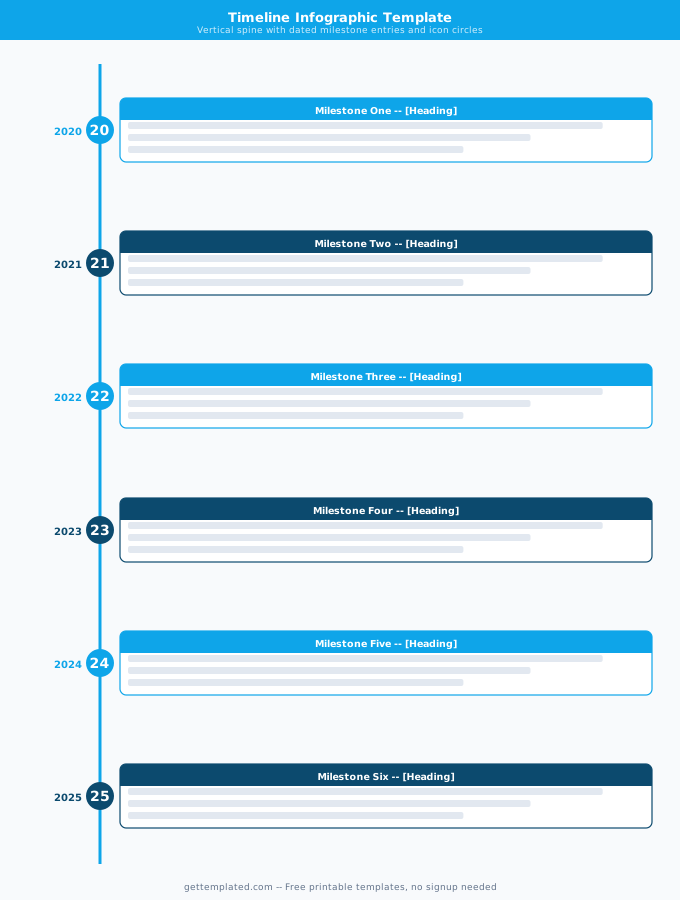
- Timeline infographic: Arranges events along a horizontal or vertical axis in chronological order. Best for company history, product development stories, or historical overviews
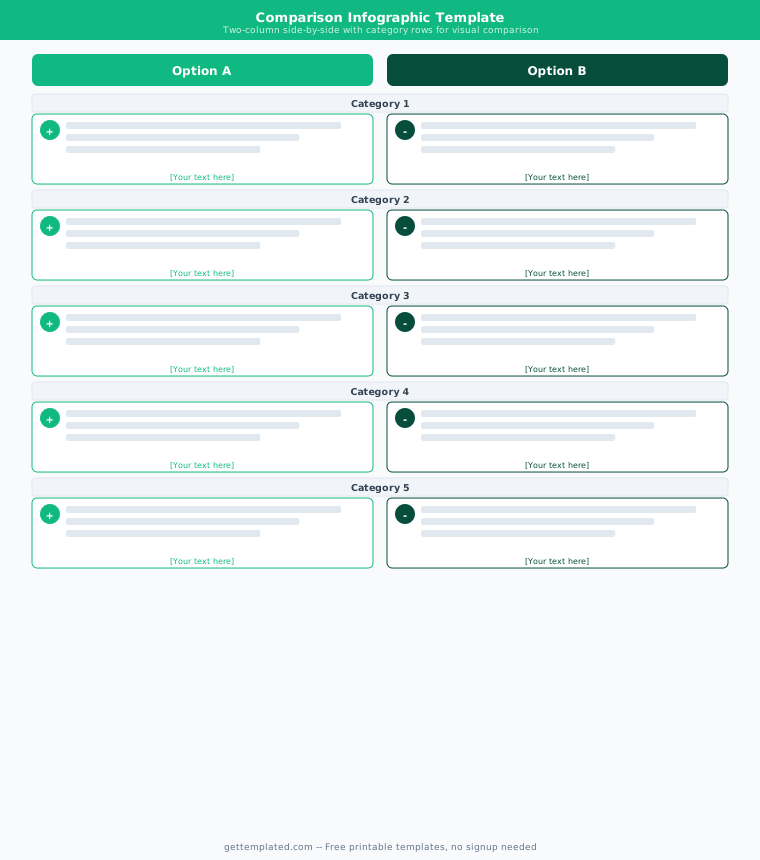
- Comparison infographic: Displays two or more options side by side for direct comparison. Best for product comparisons, before-and-after scenarios, or option evaluations
- List infographic: Formats a numbered or bulleted list with icons and short descriptions. The most versatile type and easiest to design from a template
- Hierarchical infographic (org chart style): Shows reporting structures, category trees, or ranked items. Best for organizational content or taxonomy explanations
- Geographic infographic: Overlays data on a map. Best for regional statistics, distribution data, or location-based comparisons
How to Create an Infographic Using a Template
Building an infographic from a template follows a content-first sequence. Jumping into a design tool before the content is finalized leads to layouts that do not fit the information.
- Fill in the planning template above: write your headline, choose your infographic type, and list your data points or steps before opening any design tool
- Choose the right tool for your skill level: Canva for beginners (drag-and-drop, free), Google Slides or PowerPoint for people already comfortable with presentation tools, or Adobe Express for more design control
- Search the tool's template library for your infographic type ("statistical infographic template," "timeline infographic template") to find a layout that matches your content structure
- Replace placeholder text in the template with your actual data points, keeping each label short (under eight words) and each body section under two sentences
- Swap or add icons to match each section's topic. Most tools include a free icon library or allow you to upload SVG files
- Apply your brand colors using your primary hex code. Limit the palette to two to three colors to keep the infographic clean and readable
- Add your data sources and logo in the footer, then export as PNG for web use or PDF for print
Infographic Template in Canva vs. Google Slides vs. PowerPoint
The tool you use to build an infographic from a template affects design quality, ease of use, and how you can share the final file.
A Canva infographic template is the most popular free option for non-designers. Canva has hundreds of pre-built infographic templates organized by type (list, process, statistical, etc.), a built-in icon library, and easy image replacement. You can share a Canva infographic via link or download it as a PNG, PDF, or MP4. The free Canva tier covers most infographic use cases. A free infographic template in Canva is the fastest route to a polished result with no design skills required.
A Google Slides infographic template works well if your workflow is already Google-based. Google Slides allows you to create infographic layouts using shapes, text boxes, and tables. It is less intuitive than Canva for visual design but easier to share with collaborators and embed in Google Sites or Docs. Search for "infographic template" in the Google Slides theme gallery or find third-party templates formatted for Slides.
A PowerPoint infographic template (including Word) is the best choice for organizations that live in Microsoft 365. PowerPoint's SmartArt feature has built-in process, hierarchy, and cycle diagrams that work well as infographic components. Word has more limited layout tools but handles list-style infographics cleanly using tables and icons.
Infographic Design Tips and Common Mistakes
Good infographic templates keep you from the worst design mistakes, but these principles apply no matter which template you start from.
- One key message per infographic: If you have two key points, make two infographics. Trying to say everything in one graphic produces an unreadable mess
- Limit data points to five to seven: More than seven sections overwhelms readers. Group smaller data points into categories if you have more than seven things to show
- Keep body text minimal: Each section should have a label and at most one or two lines of supporting text. An infographic is not an article
- Use a consistent icon style: Mixing line icons, filled icons, and 3D illustrations in the same infographic looks inconsistent. Stick to one style throughout
- Cite your sources: Any data in an infographic should credit its source in small text at the bottom. Unsourced statistics damage credibility and can be challenged
- Check your color contrast: Text overlaid on a colored background must have enough contrast to read clearly. Light gray text on white, or pale yellow on beige, both fail accessibility standards
- Size for the intended medium: An infographic designed for a blog post (600-800px wide) needs different proportions than one designed for print (8.5x11 or A4) or Instagram Stories (1080x1920px)
The template