What Is a Collage Template and Who Needs One
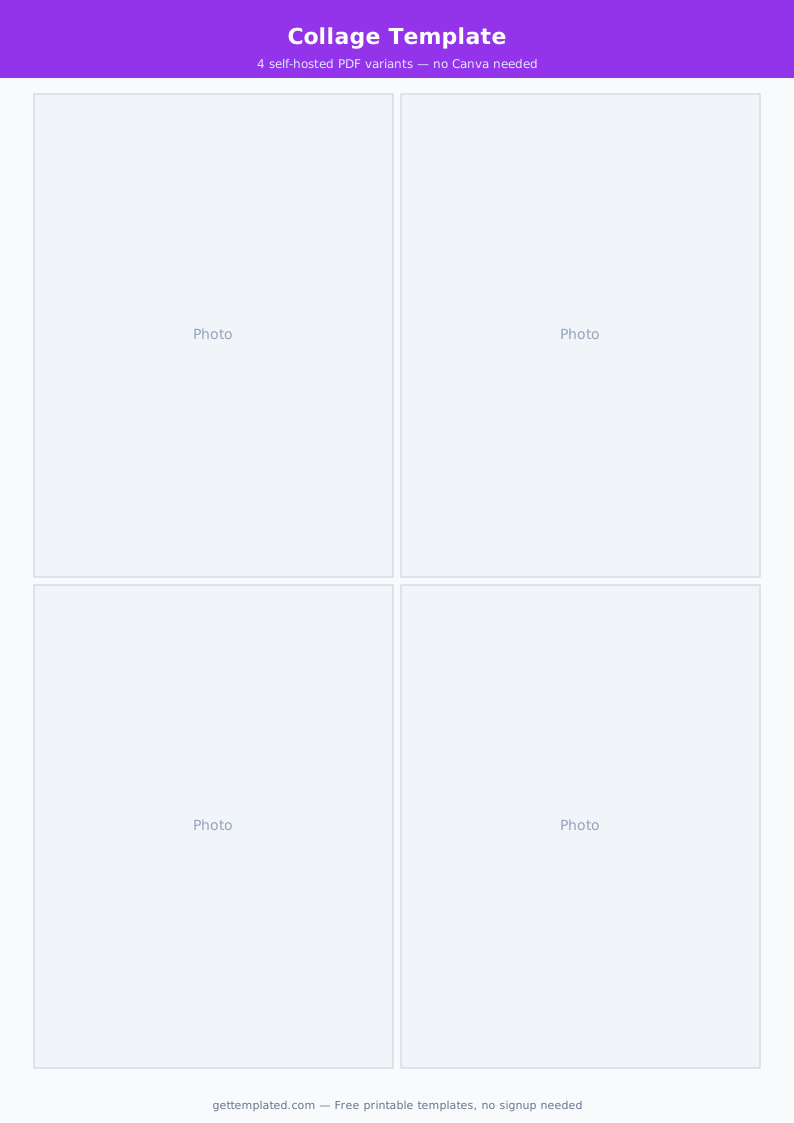
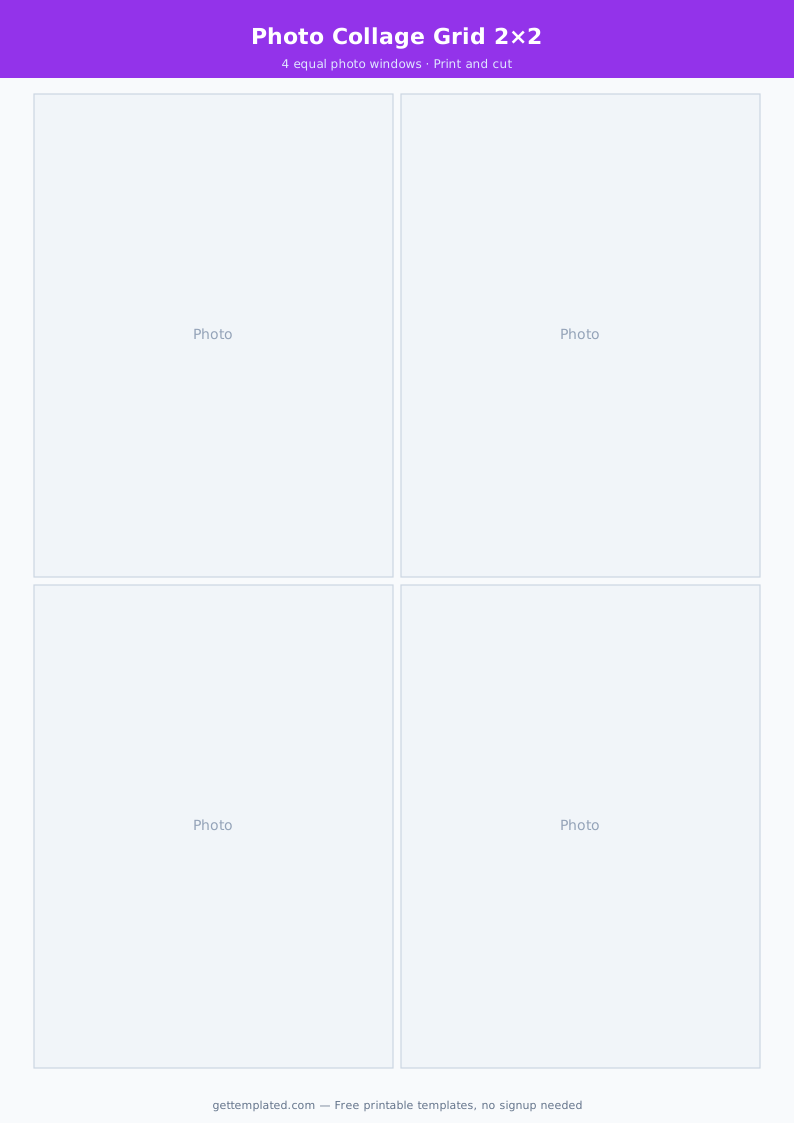
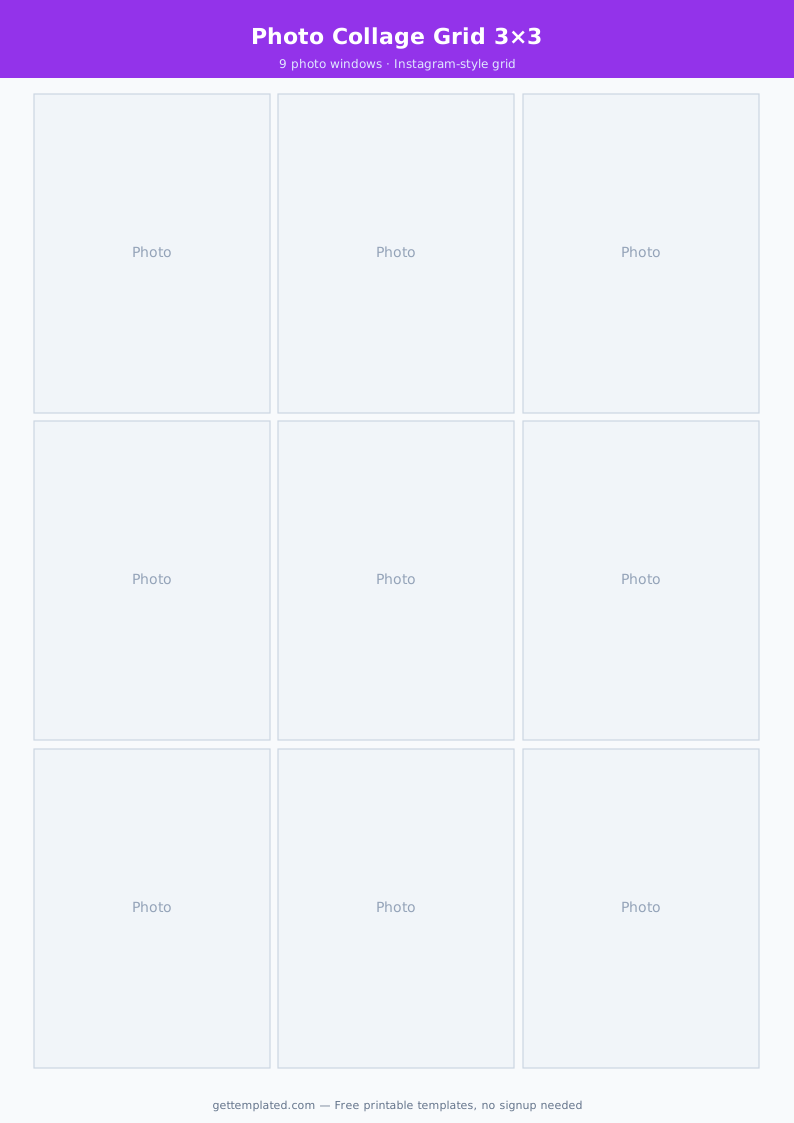
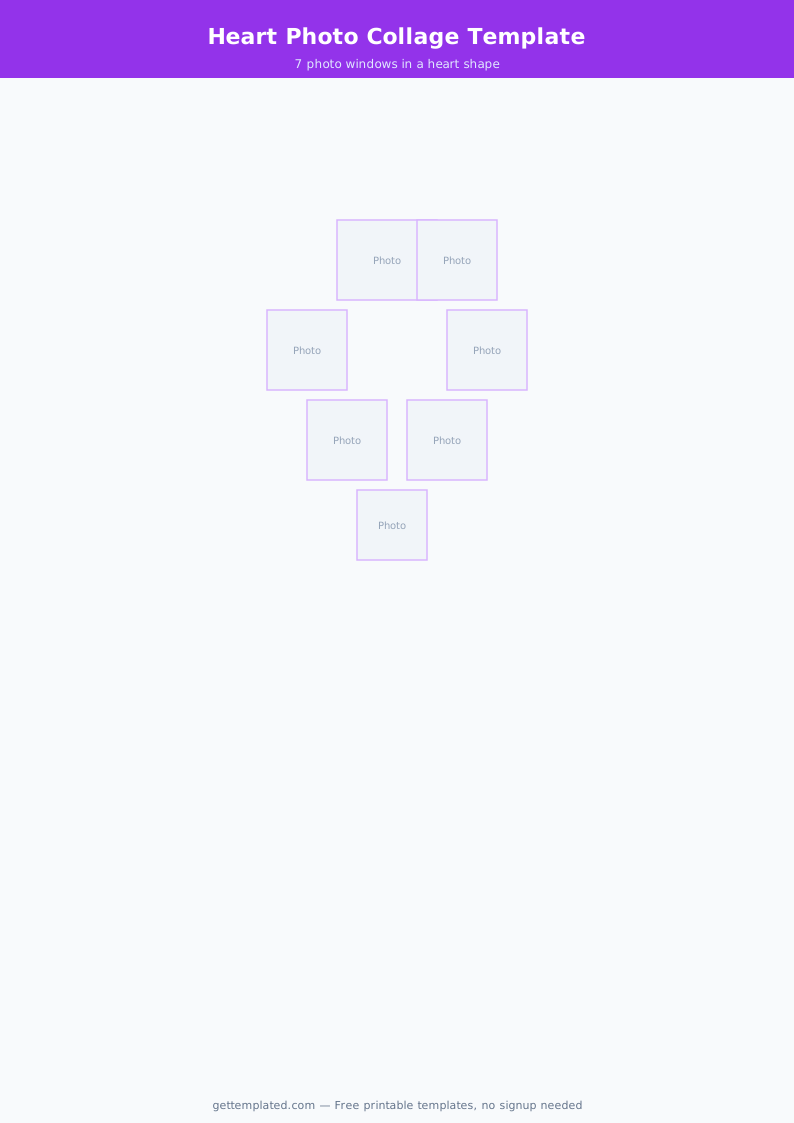
A collage template is a pre-designed layout that defines how multiple photos or images are arranged on a single canvas. Instead of manually positioning and resizing each photo, the template gives you a set of fixed frames or cells: you drop your images in, and the proportions and spacing are already handled.
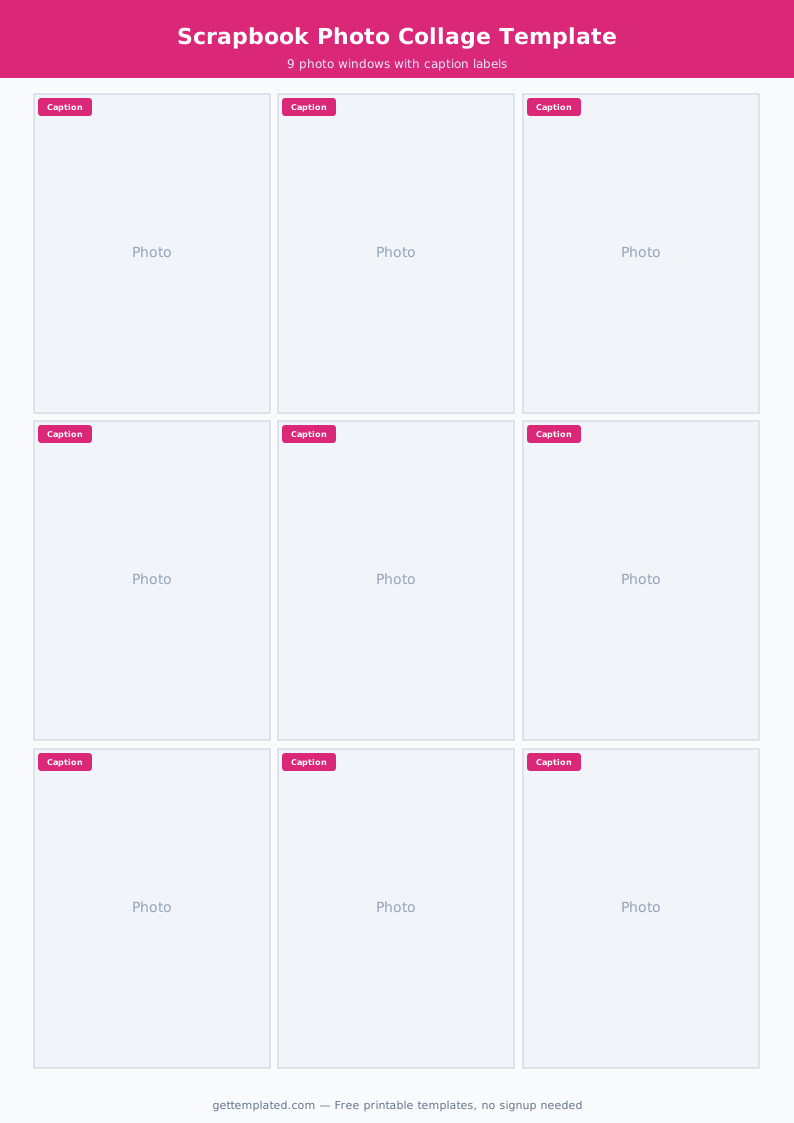
Collage templates are used in a wide range of contexts. A photo collage template is the most common type, used for printing multi-photo keepsakes or sharing grouped images on social media. A gallery wall template helps you plan the arrangement of framed prints on a physical wall before you start putting holes in the drywall. A photo strip template creates the classic four-frame vertical strip format familiar from photo booths. A scrapbook template combines photo frames with space for journaling, stickers, and decorative elements on a page.
What all of these have in common is that they solve the same problem: deciding how to allocate space across multiple visual elements without spending an hour experimenting with manual placement.
- Home decor planners: use a gallery wall template to visualize frame arrangements on a wall before committing to nails and hardware
- Event organizers: use photo booth strip templates for weddings, birthday parties, and school events to give guests a printable keepsake
- Parents and families: use photo collage templates to create annual recap prints, baby milestone grids, or holiday cards
- Social media users: use collage templates sized for Instagram posts (1:1 or 4:5 ratio) or Facebook albums to share grouped travel or event photos
- Scrapbookers and crafters: use scrapbook page templates as a base layer that holds photos while leaving room for handwritten notes, washi tape, and decorative elements
- Designers and photographers: use collage templates to present client work in a mood board or portfolio preview format
What to Include in a Photo Collage Template
The components of a collage template vary depending on the type, but these are the elements that appear across almost every well-structured layout regardless of how many photos it holds or what it is used for.
- Photo frames or cells: the defined rectangular (or shaped) areas where each photo goes; the template should make it clear how many slots exist and how large each one is
- Aspect ratio or exact dimensions: the overall canvas size (for example, 8x10 inches at 300 dpi for print, or 1080x1080 px for Instagram) and the ratio of each individual photo slot within it
- Gaps and borders: the spacing between photo cells; borderless designs give a clean mosaic feel while wider gaps (8 to 10 mm) create a more structured, framed look
- Background color or texture: what shows behind the photos, whether it is white, black, a solid brand color, or a texture like kraft paper
- Caption or text areas: space for dates, names, a title, or brief labels beside individual photos
- Bleed area (print only): for professionally printed collages, a 3 mm bleed prevents white slivers from appearing after trimming
- Resolution guide: a note on minimum source photo resolution to avoid a pixelated print; a 4x6 inch slot at 300 dpi needs a source image of at least 1200x1800 px
How to Make and Use a Photo Collage Template
You can build and use a collage template in free tools like Canva or Google Slides, in a photo editing app like Adobe Express or Photoshop, or by printing a pre-made template and assembling a physical scrapbook page. The steps below cover the digital approach that works for most use cases.
- Decide your output format first: are you printing (and at what size), sharing digitally on social media, or planning a physical gallery wall? The answer determines your canvas size and resolution before anything else
- Choose your canvas size and resolution: for print, use 300 dpi at the physical output size (for example, 2400x3000 px for an 8x10 inch print). For Instagram square posts, use 1080x1080 px. For a photo booth strip, use a 2x6 inch canvas at 300 dpi (600x1800 px)
- Select a layout style: equal-size grid (all photos the same size), mixed-size (one anchor photo large with smaller supporting images), strip (a single horizontal or vertical row), or mosaic (irregular interlocking rectangles). Equal-size grids are easiest for beginners; mixed-size layouts look more editorial
- Set your gap width: in your design tool, set a consistent gap between all photo cells before placing any images. In Canva, use the spacing control in the grid element. For print work, 3 to 5 mm looks clean; for digital social media collages, 4 to 8 px is a common choice
- Drop in your photos: add photos to each cell in the order you want them read, usually left to right, top to bottom. Adjust the zoom level of each photo within its cell so the most important part of the image (a face, a landmark, a key object) sits in the center of the frame
- Add a background and text: fill the background layer with your chosen color or texture. Add any captions or a title using a clean sans-serif font in a size that does not compete with the photos
- Preview at output size: zoom out to see the full layout at the size it will actually be displayed or printed. Photos that look fine up close often have contrast or color issues when viewed as part of the full collage
- Export at the correct settings: for print, export as PNG or TIFF at 300 dpi. For digital sharing, export as JPG at 80 to 90 percent quality to keep file size manageable without visible compression artifacts
Gallery Wall Template: Planning Your Wall Layout
A gallery wall template is a specialized collage template for planning the arrangement of physical framed prints on a wall before hanging anything. The template is typically a scale diagram of the wall area with frame silhouettes representing each print's size, so you can experiment with arrangements on paper rather than with a hammer and wall anchors.
Measure your wall space, choose a set of frame sizes (a mix of 5x7, 8x10, and 11x14 frames works well), and arrange the silhouettes until the grouping feels balanced. Gallery walls generally follow three patterns: a structured grid where frames align on a common edge, an organic cluster around a central anchor piece, or a linear row where frames share a horizontal center line.
- Measure your wall area and note any obstacles (outlets, light switches, window edges) that will constrain frame placement
- Choose a dominant frame size for the anchor piece (typically the largest print in the arrangement, placed at the optical center of the grouping)
- Surround the anchor with smaller frames, maintaining 2 to 3 inches of space between each frame to prevent the wall from looking crowded
- Lay out all the frames on the floor first to confirm the arrangement before marking the wall
- Use the template to note the center point of each frame and transfer those measurements to the wall for accurate hook placement
- Consider the viewing distance: a gallery wall in a hallway (viewed from 3 to 4 feet) needs larger type and bolder images than one above a sofa (viewed from 8 to 10 feet)
Photo Collage Tips and Mistakes to Avoid
Most collage problems come from inconsistent photo quality, unplanned layouts, or the wrong output settings for the intended use. These are the issues that come up most often and how to handle them.
- Mixing very different photo orientations: a tall portrait next to a wide landscape in equal cells forces heavy cropping on one; group similar orientations together or use a mixed-size layout where each slot matches the photo's natural shape
- Low-resolution source photos: older phone cameras and compressed social media downloads often look blurry at print size; check that each source image is at least 1200 px on its shortest side before using it in a print collage
- Inconsistent color grading: photos taken in different lighting look mismatched in a collage; run a light editing pass to bring overall tones closer before assembling
- Overcrowding: fitting twelve photos into a space suited for six makes each one too small to enjoy; set a maximum photo count for the canvas size and keep to it
- Forgetting bleed for print: any photo or color reaching the edge of a full-bleed collage must extend at least 3 mm past the trim line or the printed result shows a white sliver
- Wrong canvas size for social media: Instagram and Facebook have specific aspect ratio requirements; an 8x10 collage template will be cropped when shared as a social post, so size your canvas for the platform from the start
The template