What Is a Banner Template and Which Platform Do You Need It For
A banner template is a pre-structured layout guide for the wide header image displayed at the top of a YouTube channel page, LinkedIn profile, Twitch channel, or other social platform. The template tells you where to place your logo, what text to include, and how large to make each element so the finished image looks clean across every device type.
The most common reason banner designs fail is not poor design skill but wrong dimensions. Each platform has its own required image size, and some platforms (especially YouTube) further divide the banner into safe zones for TV screens, desktop browsers, and mobile. A banner template eliminates both problems by giving you the correct canvas size upfront and marking where the visible area ends on smaller screens.
- YouTube channel banner template: Displays at the top of your YouTube channel page on desktop, mobile, and TV screens
- LinkedIn banner template: The background header image on your LinkedIn personal profile or company page
- Twitch banner template: Covers offline banners (shown when you are not streaming) and profile banners
- YouTube channel art template: Another name for the YouTube banner, sometimes used to refer specifically to the channel art section in YouTube Studio
- General web banner templates: Standard advertising banner sizes (728 x 90 leaderboard, 300 x 250 medium rectangle) used on websites and ad networks
Correct Banner Dimensions for Every Platform
Getting the dimensions right before you start designing saves you from having to redo the work after the image looks wrong when uploaded. These are the standard sizes for the most common banner templates.
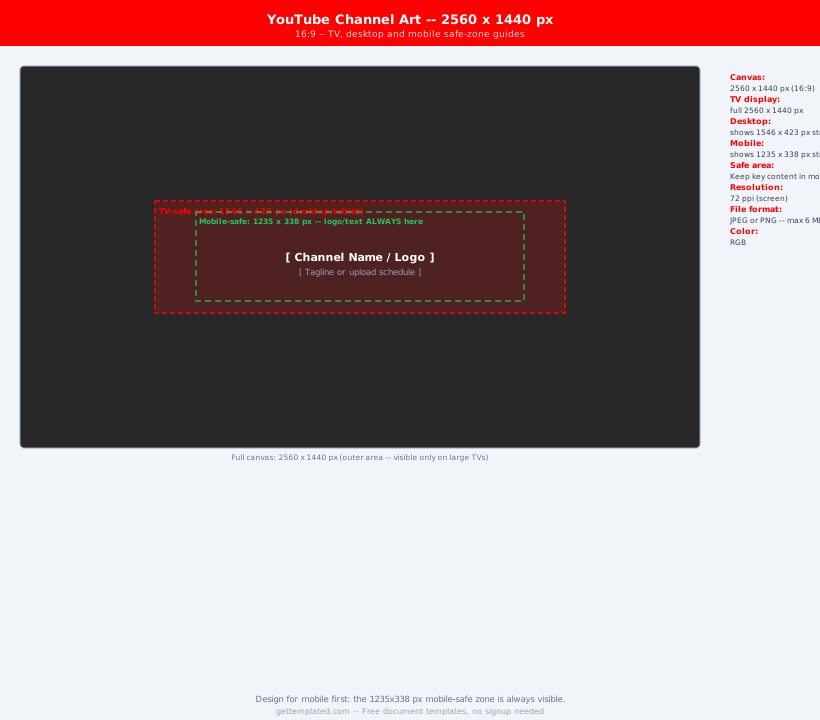
- YouTube banner template: 2560 x 1440 pixels. The safe zone where text and logos are visible on all devices is 1546 x 423 pixels centered in the image. Keep all important elements inside this central rectangle
- YouTube channel art: Same as the YouTube banner (2560 x 1440 px). The terms are interchangeable in YouTube Studio
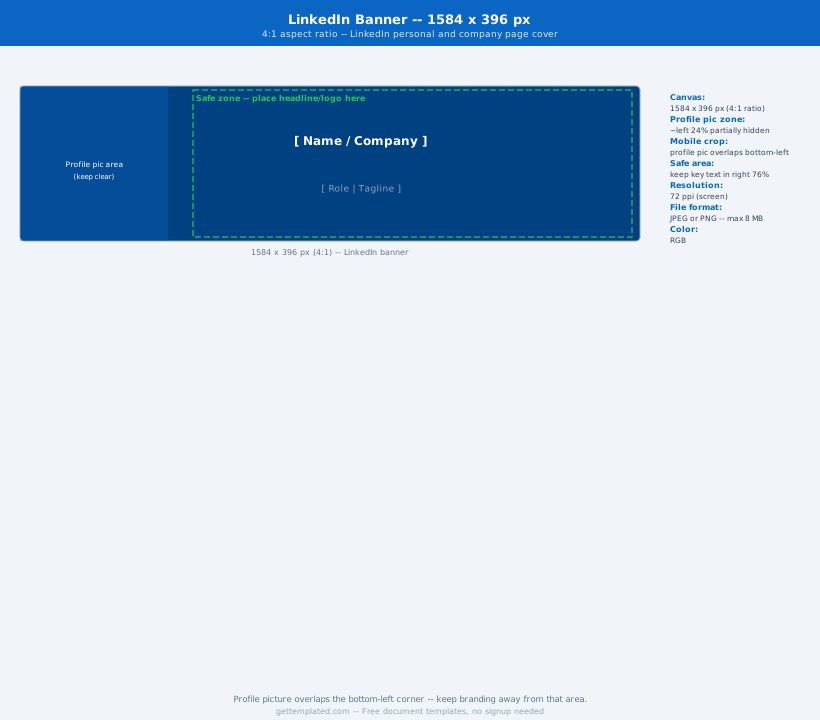
- LinkedIn personal banner template: 1584 x 396 pixels. Most of the image is visible on desktop; check mobile preview because LinkedIn crops heavily on smaller screens
- LinkedIn company page banner: 1128 x 191 pixels. Much narrower aspect ratio than personal profiles
- Twitch offline banner: 1920 x 1080 pixels (standard HD widescreen). This is the image viewers see when you are offline
- Twitch profile banner: 1200 x 480 pixels
- General leaderboard banner: 728 x 90 pixels
- Medium rectangle banner: 300 x 250 pixels
How to Design a Banner Using This Template
This template works as a content and layout guide you follow inside your preferred design tool. Canva, Adobe Express, Photoshop, GIMP, and Google Slides all let you create custom canvas sizes for banner work.
- Choose your platform and note the correct pixel dimensions from the reference section above
- Open your design tool and create a new canvas at the correct pixel dimensions. In Canva, search for your platform by name and it will auto-size the canvas
- Define your safe zone: for YouTube banners, mark a centered rectangle at 1546 x 423 px using a guide or colored overlay, then remove the overlay before exporting
- Place your logo or channel icon in the left zone of the safe area. Leave enough clear space around it so it is readable even at smaller display sizes
- Add your headline text in the center of the safe area. Use your brand's primary font and a large enough size to read on a phone screen (at least 30 to 40 pt equivalent at the full resolution)
- Add a tagline or upload schedule below the headline. Keep it to one short phrase
- Place your social handle or website URL in the right zone, using a smaller font size than the headline
- Review the design by previewing it at phone size (drag the canvas view to a small size, or use Canva's mobile preview feature) to confirm the safe zone looks right
- Export at the full resolution as PNG for best quality
YouTube Banner Template: Safe Zone and Device Breakdown
The YouTube banner template is more complex than other platforms because the same image is displayed at different sizes depending on the viewer's device, and each device crops the image differently.
On TV screens, the full 2560 x 1440 pixel image is visible. This means if you leave the background plain or decorative outside the safe zone, it will show as part of the design on TV.
On desktop browsers, YouTube shows the full width of the image but reduces the height, so the image is letterboxed. The visible strip is roughly the central horizontal band of the image.
On mobile, YouTube shows only the central safe zone: a horizontal strip 1546 x 423 pixels centered in the image. Any content outside this area, including your logo or text, will be cropped and invisible to mobile viewers.
The practical result: design your core message (channel name, tagline, and logo) entirely within the 1546 x 423 centered safe zone. Use the rest of the canvas for visual background elements, patterns, or photography that looks good even when cropped heavily.
Banner Design Tips and Common Mistakes
Most banner template mistakes fall into two categories: wrong dimensions and cluttered design. These tips cover both.
- Design at the full resolution from the start: It is much harder to scale a small design up to 2560 x 1440 than to scale a large design down
- Limit text to two lines in the safe zone: Channel name on one line, tagline or schedule on the second. More text becomes unreadable on mobile
- Use high-contrast text: Light text on a dark background (or vice versa) is the most readable combination. Avoid placing text over busy image areas without an overlay or text shadow
- Test on mobile before finalizing: Preview your banner at phone size before uploading. What looks fine on a large monitor often has too-small text on mobile
- Keep your branding consistent: Use the same font, colors, and logo style across your banner, profile photo, and thumbnails so your channel looks cohesive in search results
- Update your banner for series or campaigns: A static banner is fine, but updating it quarterly or for major content shifts signals that the channel is active and evolving
The template