What a Roblox Template Is and How It Works
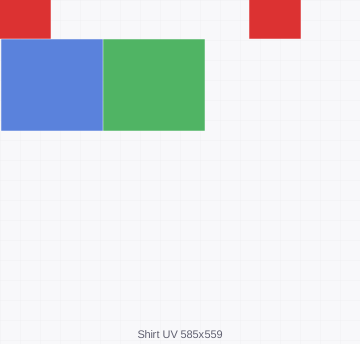
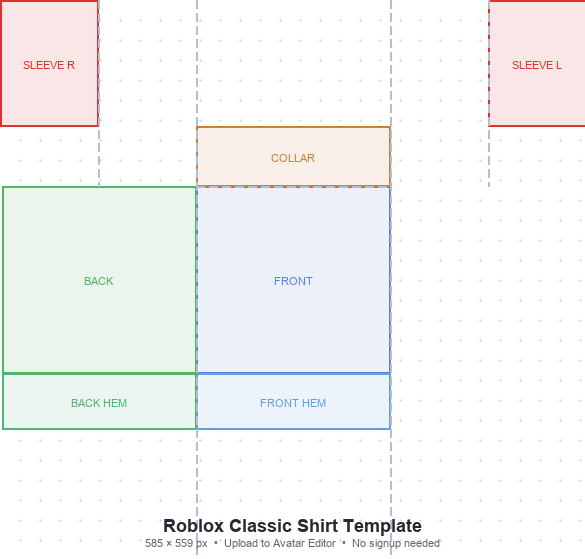
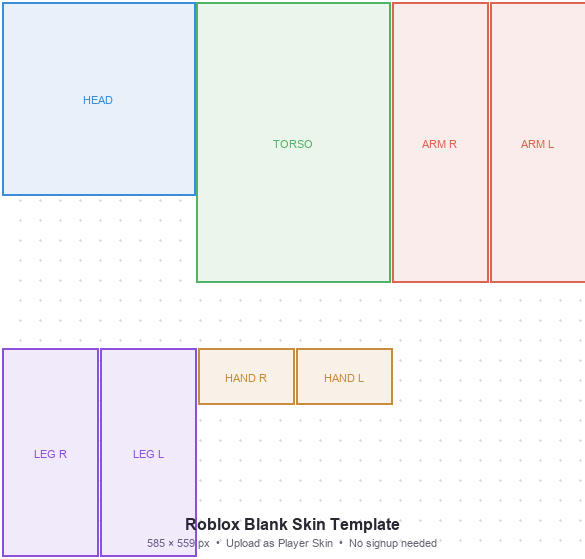
A Roblox template (also called a Roblox clothing template or Roblox clothes template) is a PNG image file with transparent guidelines that show you exactly where different body parts appear on the avatar. When you upload a shirt or pants design to Roblox, the platform uses these mapped coordinates to wrap the flat image around the 3D avatar model correctly.
The most commonly used templates are the shirt template, the pants template, and the shading template (a grayscale guide that shows where shadows and highlights fall on the body to help make clothing look three-dimensional). The standard dimension for all Roblox clothing templates is 585 x 559 pixels. Roblox requires the image to be a PNG file with a transparent background.
- Roblox shirt template: maps the torso, front and back, and both arms onto a flat PNG
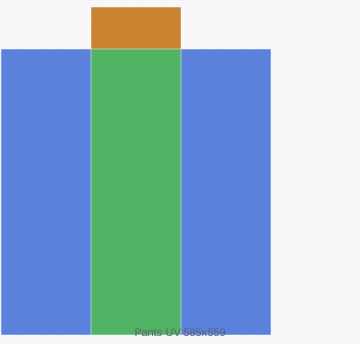
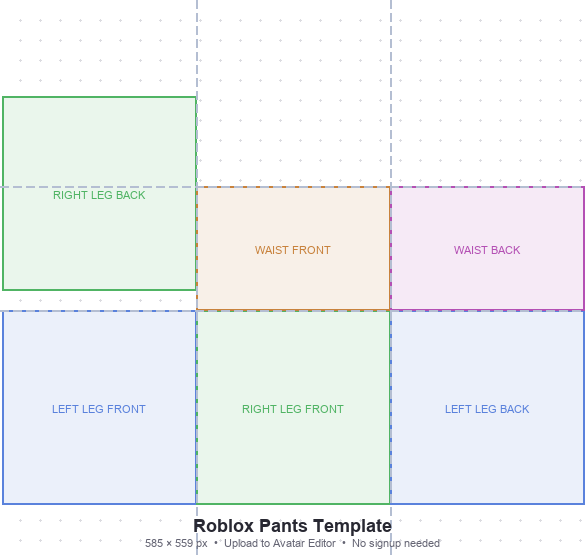
- Roblox pants template: maps both legs, front and back, onto a flat PNG
- Roblox shading template (585 x 559): a grayscale guide showing light and shadow contours on the avatar body
- Roblox hoodie template: a shirt template variant with extended sleeve regions for a hoodie overlay
- Roblox ad template: a separate image format used for in-game advertisements, not clothing
Where to Get a Free Roblox Template
Roblox provides official transparent PNG templates through its Creator documentation. These are the most accurate templates because Roblox updates them when the avatar body proportions change. Several third-party sites and communities also host transparent Roblox shirt and pants templates, but always verify the dimensions match the official 585 x 559 specification before designing.
- Roblox Creator Documentation (create.roblox.com/docs): the official source for current shirt and pants template PNGs
- Roblox DevForum and community Discord servers: members share updated transparent templates
- DeviantArt: a large archive of Roblox shading templates and clothing base designs, many free to use
- Roblox clothing groups on Roblox itself: some groups post free template files in their group pages
- Image search for 'roblox shirt template transparent 585x559': locates the correct blank template quickly
How to Use a Roblox Template to Create Clothing
Creating Roblox clothing with a template requires a basic image editing application. Free tools like GIMP, Paint.NET, and Photopea (browser-based) all work. Paid tools like Adobe Photoshop and Clip Studio Paint also work but are not necessary. The process is the same regardless of the tool.
- Download a transparent Roblox shirt or pants template at 585 x 559 pixels from the Roblox Creator docs or a trusted community source.
- Open the template in your image editing app. The template outlines will appear as faint lines on a transparent or light background.
- Create a new layer above the template layer. Draw, paint, or paste your design on this new layer so the template guides stay visible underneath.
- Use the body part outlines as boundaries. Keep design elements within the corresponding region (front torso, sleeves, etc.) to avoid misalignment on the avatar.
- If you want realistic shading, add a third layer using a Roblox shading template (585 x 559) set to multiply or overlay blend mode at low opacity.
- When your design is complete, hide or delete the template guide layer. Export the file as a PNG with transparency preserved.
- Log into Roblox Studio or the Creator Dashboard at create.roblox.com. Go to the clothing upload section, choose shirt or pants, and upload your PNG file.
- Set a price (or make it free for your avatar) and publish. Check how it looks on your avatar in the preview before finalizing.
Roblox Clothing Template Types and Variations
Different clothing types require different templates. The shirt and pants templates are the primary ones for everyday clothing. Understanding which template to use for each garment type saves time and avoids common upload errors.
- Roblox shirt template: covers the torso and arms, used for t-shirts, jackets, hoodies, and upper-body clothing
- Roblox pants template: covers both legs, used for jeans, shorts, leggings, and lower-body clothing
- Roblox shading template 585 x 559: a grayscale overlay used to add realistic depth and shadow to clothing designs
- Roblox pants template transparent: the same pants template with a fully transparent background, preferred for clean designs
- Roblox hoodie template: a community-created variant that adds hood and front pocket outlines to the standard shirt template
- Classic vs. R15 avatar templates: the older R6 avatar uses a slightly different template than the current R15 rig. Most modern templates target R15.
Free Tools for Designing Roblox Templates
You do not need paid software to create Roblox clothing. Several free tools handle the 585 x 559 PNG format and layer-based editing needed for clothing design.
- Photopea (photopea.com): a free browser-based editor with Photoshop-style layers, works directly with Roblox templates, no install required
- GIMP (gimp.org): a powerful free desktop image editor with full layer and transparency support
- Paint.NET (getpaint.net): a simpler free Windows editor that supports layers and PNG transparency
- Krita (krita.org): free digital painting app, popular among Roblox clothing designers who want detailed shading
- Canva: easier to use but limited for complex clothing designs, better for simple graphic overlays
Common Roblox Template Mistakes and How to Avoid Them
Most clothing upload issues on Roblox come from a small set of fixable mistakes. Knowing them in advance saves rounds of re-uploading and waiting for moderation review.
- Wrong dimensions: uploading a file that is not 585 x 559 pixels causes misalignment on the avatar. Always verify before exporting.
- Not using a transparent background: a white or colored background will show as a colored box on the avatar. Export as PNG with transparency.
- Designing on the wrong layer: drawing directly on the template guide layer makes it impossible to remove the guides before export.
- Ignoring body part boundaries: drawing a logo that spans the torso and arm regions without accounting for the seam results in a distorted look.
- File size over 1 MB: high-resolution brushwork can push the PNG over Roblox's upload limit. Flatten or optimize the file before uploading.
- Not previewing before publishing: always check the clothing on your avatar in Roblox Studio's avatar preview before making it public or selling it.
The template