What Is a Business Card Template and Who Uses It
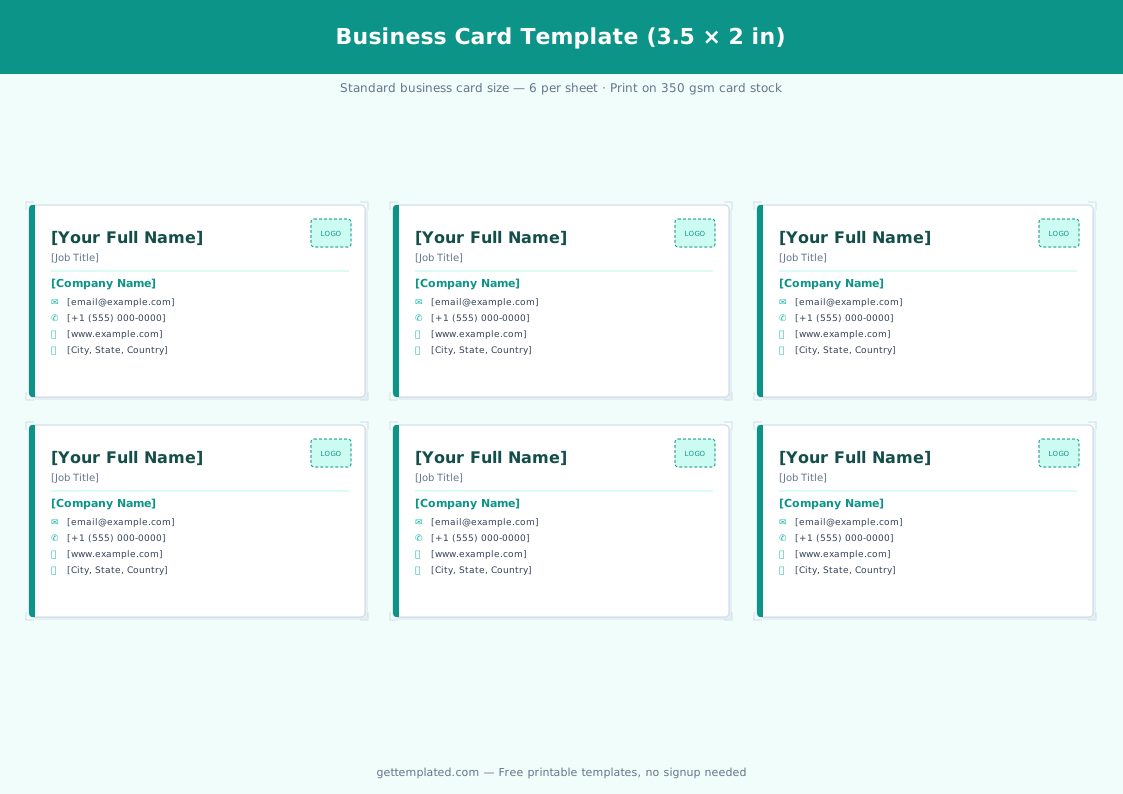
A business card template is a pre-sized, formatted document that holds your contact details, job title, and brand in the standard 3.5 x 2 inch layout. You fill in the placeholders and print, or send the file to a print shop.
Business cards remain a practical networking tool at conferences, client meetings, trade shows, and in-person sales calls. Freelancers, small business owners, consultants, real estate agents, and service professionals all use them to hand someone their contact information in a format that is far harder to lose than a phone number typed into an app.
A blank business card template also helps you create matching cards for an entire team without hiring a designer, just duplicate and change the name and role in each copy.
- Freelancers and consultants who network at events and want a professional handout
- Small business owners who cannot yet justify a designer but need polished cards
- Real estate agents, photographers, and other visual professionals who print in small batches
- Office managers creating matching cards for multiple team members
- Students or recent graduates building a job-search toolkit
What to Include on a Business Card
A business card has limited space, so every element should earn its place. Here is what to include and what to leave out.
- Full name: Use the name you go by professionally, not a nickname
- Job title or role: Keep it short and clear (e.g., "Freelance Graphic Designer" or "Founder")
- Company name: Include your business name or DBA even if you work solo
- Phone number: Your main work or mobile number, one number only
- Email address: Use a professional domain (yourname@yourcompany.com, not a free webmail)
- Website: Your portfolio, business site, or booking page
- Social handle (optional): Only include LinkedIn, Instagram, or another profile if it is consistently professional
- QR code (optional): A QR code linking to your website or digital business card saves typing and works well for tech-forward audiences
How to Fill In and Print a Business Card Template
This free business card template works in Google Docs, Microsoft Word, and as a printable PDF. Follow these steps to go from template to printed card.
- Open the template in Google Docs or download the Word file. Make a copy in your Drive or save locally.
- Replace every placeholder with your real information: name, title, company, phone, email, and website.
- Adjust font sizes if any line runs too long. Name in 10-12pt bold and contact details in 8-9pt is a reliable starting point.
- Add a logo or headshot if your layout includes one, using Insert > Image.
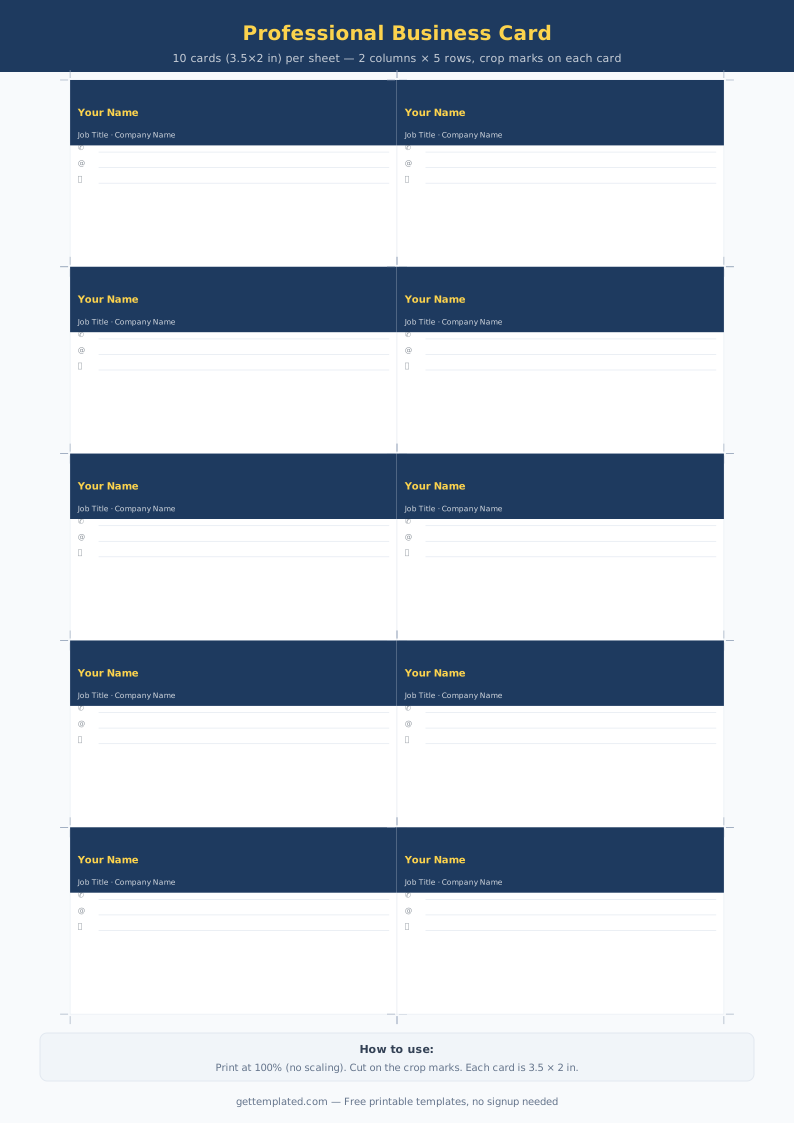
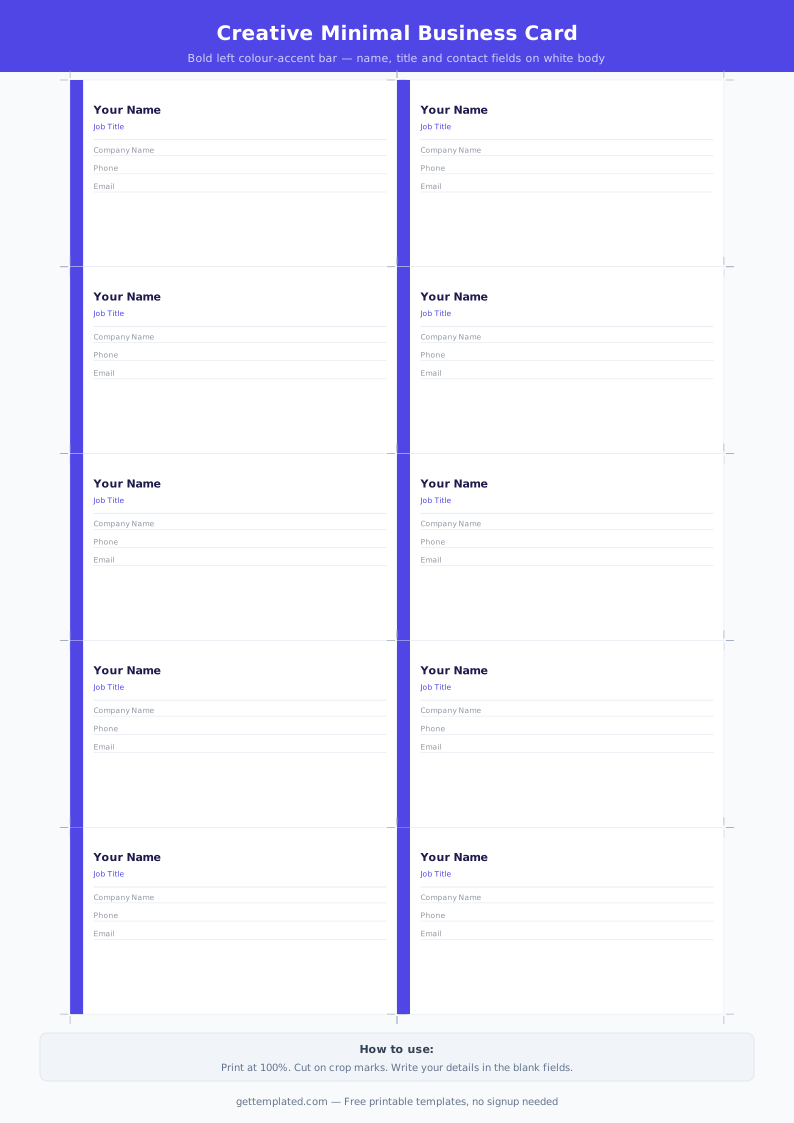
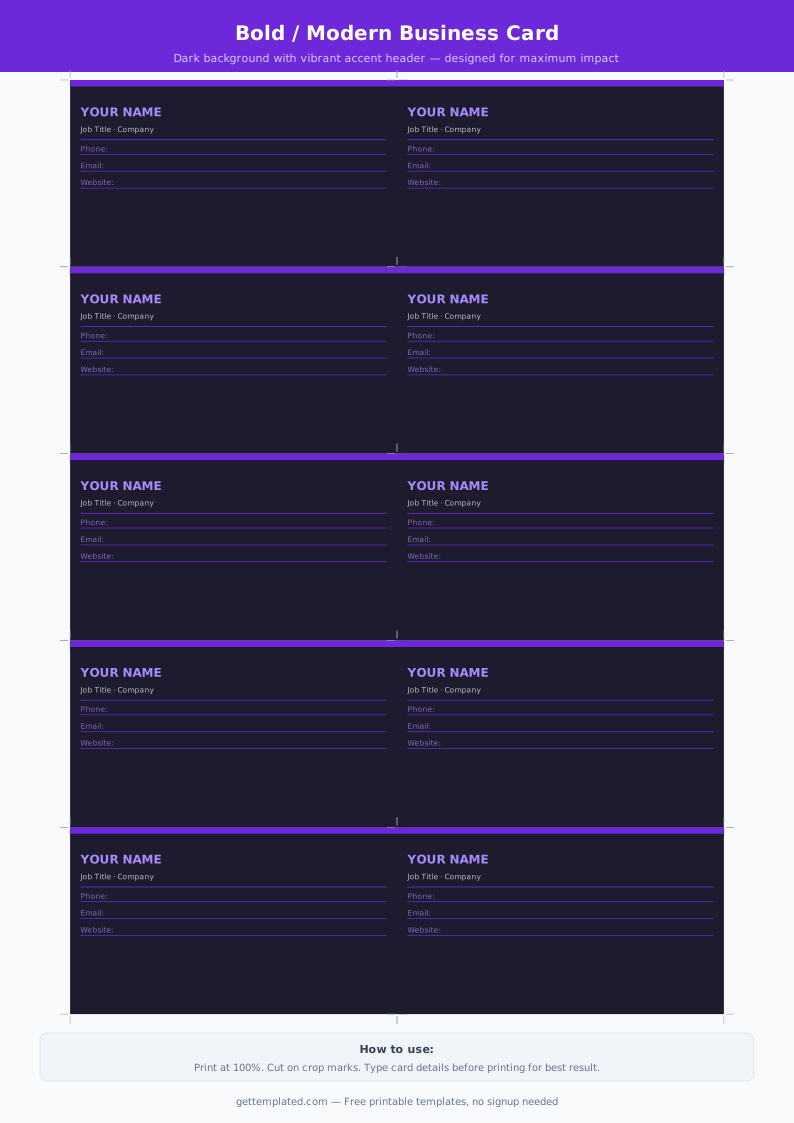
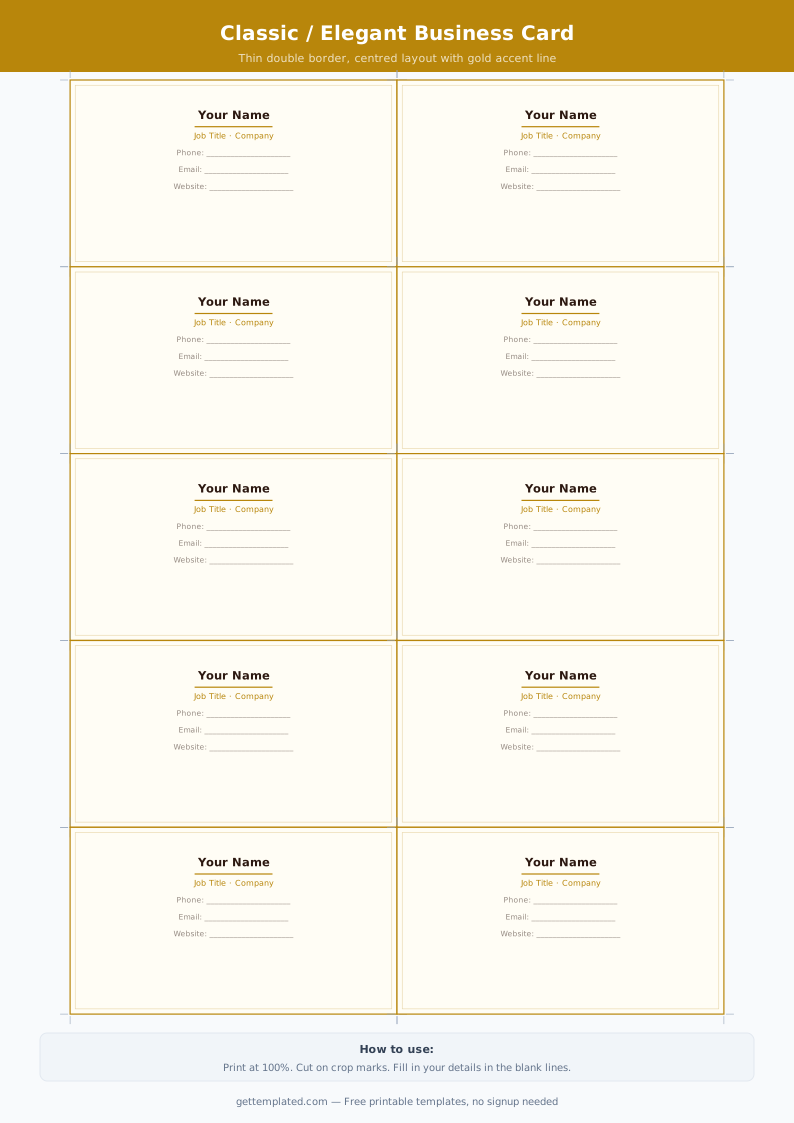
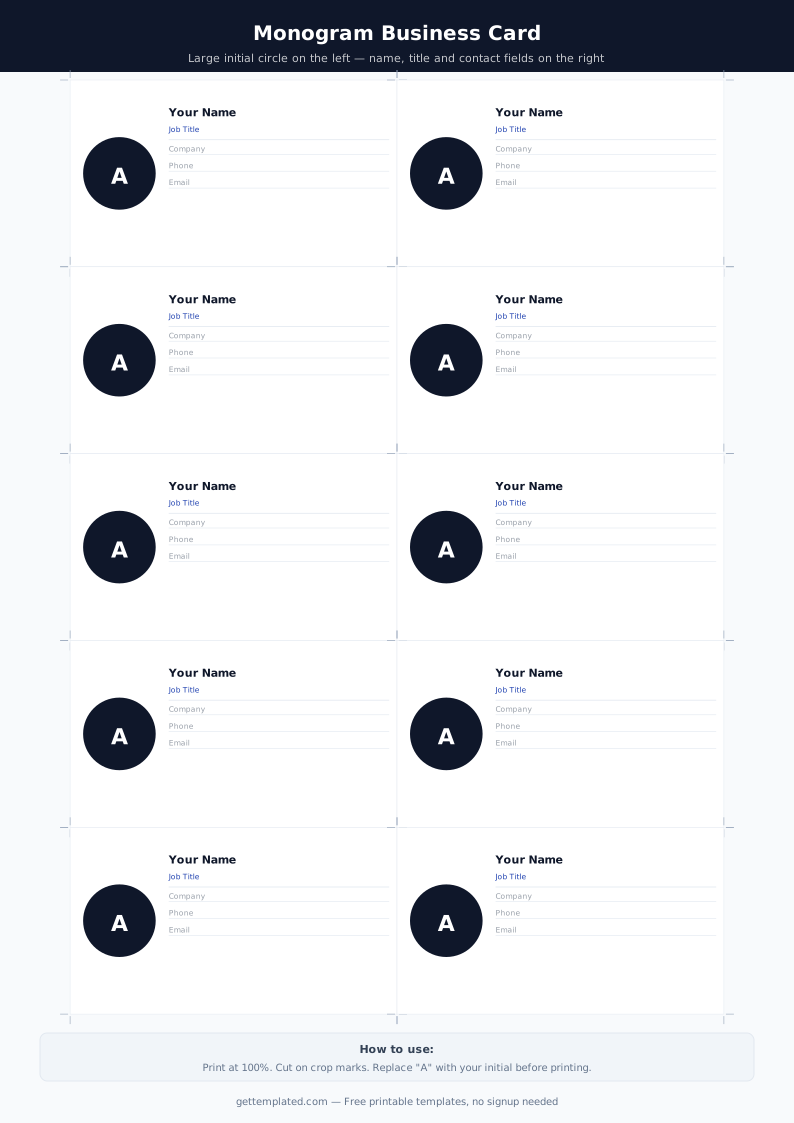
- For home printing, set your document page to 8.5" x 11" and create a 5x2 grid of card frames (use a table). Each cell = one card at 3.5" wide x 2" tall.
- Print a test page on plain paper first to check alignment before using cardstock.
- Cut along the lines with a paper trimmer for clean edges, or use Avery perforated cardstock that tears apart cleanly.
Business Card Template Formats: Google Docs, Word, and Avery
Different tools suit different workflows. Here is a quick comparison of the main formats for creating free business card templates.
Google Docs business card template: Works in any browser with no software to install. Easiest to share with a designer or co-worker for quick edits. You can also use Google Slides, which handles precise sizing more naturally than Docs. Export as PDF before printing.
Microsoft Word business card template: Avery offers free Word templates on their website matched to specific Avery stock numbers (like 5371 or 8371). Open the template in Word, fill in your details, and print directly onto Avery perforated sheets from any home printer.
Blank printable business card PDF: If you have already designed your card and just need to print, a PDF keeps formatting locked so nothing shifts between computers. Most print shops accept PDF files and prefer them over Word documents.
Canva business card template: Canva is a free browser-based design tool with many business card layouts. It is a good option if you want graphic-heavy designs (gradient backgrounds, icon sets) that are harder to do in Docs or Word.
Business Card Design Tips and Common Mistakes
The best business card templates are simple, legible, and on-brand. These tips help you get there without hiring a designer.
- Use no more than two fonts: one for your name and one for contact details. Mixing three or more fonts looks cluttered.
- Minimum font size is 7pt for any text that must be readable. Anything smaller looks professional in a preview but unreadable when printed.
- Keep a 0.125" bleed and 0.125" safe zone margin if you are sending to a print shop, content too close to the edge gets trimmed.
- White space is not wasted space. A card that is not packed edge-to-edge reads as more professional and premium.
- Stick to two to three brand colors. A single bold color (your brand color) plus black and white is almost always the right call for a first card.
- Double-check every email address, phone number, and URL before printing a full batch, errors are expensive and embarrassing.
The template